
3. Catcher Car-/Split Point Configuration
You’ll have 3 notebooks with you.
1x OBU in Main Box
1x OBU in Backup Box
1x OBU in 15K Box (they are for spare purposes, only use them if Racecontrol instructs you.)
There will be a KM-Screen mounted on the CatcherCars, they will provide the distance already ran. Please read the Documentation on how to use them in the separate guide: KM-Screen_Guide
3.11+2 Catcher Car MAIN
3.2 Catcher Car+ Backup
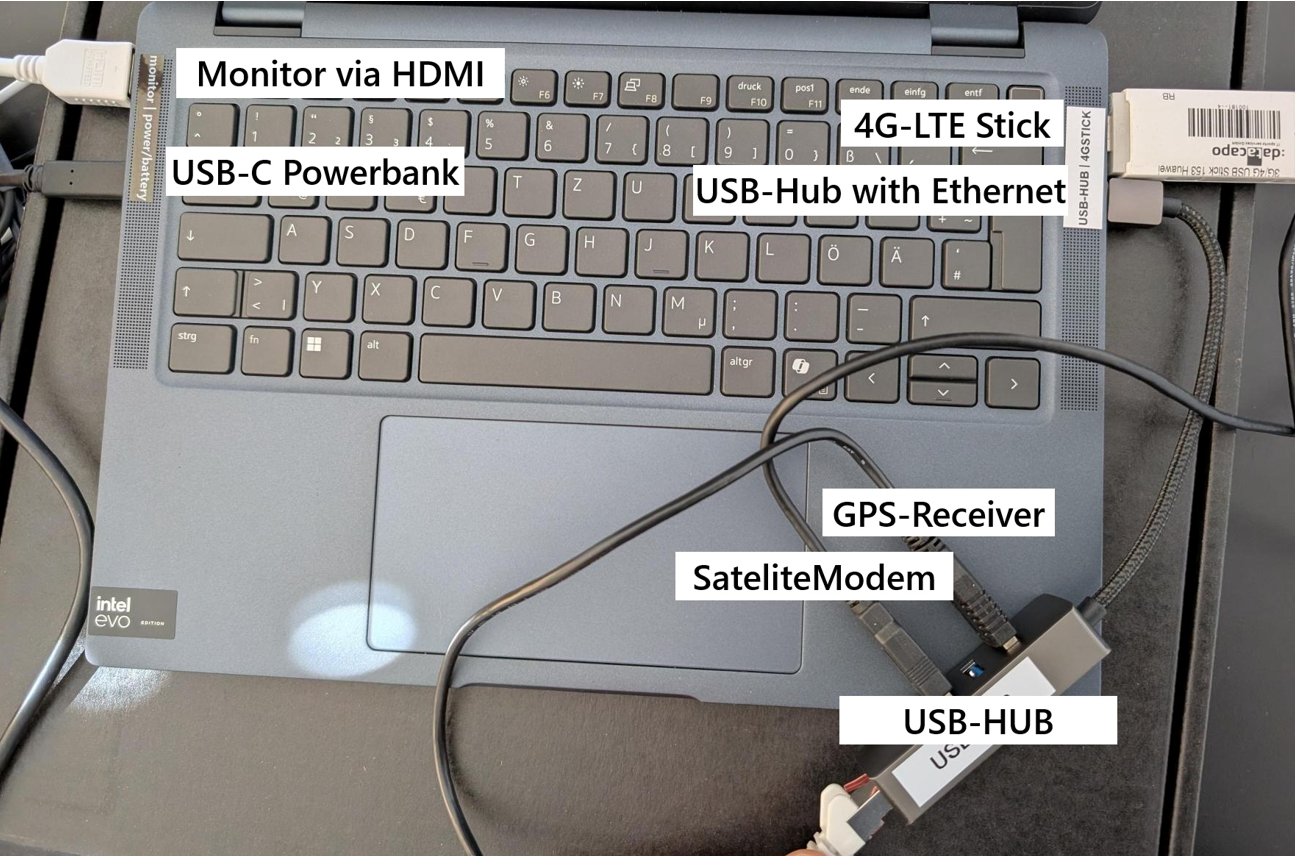
The Catcher Car Setup includes:
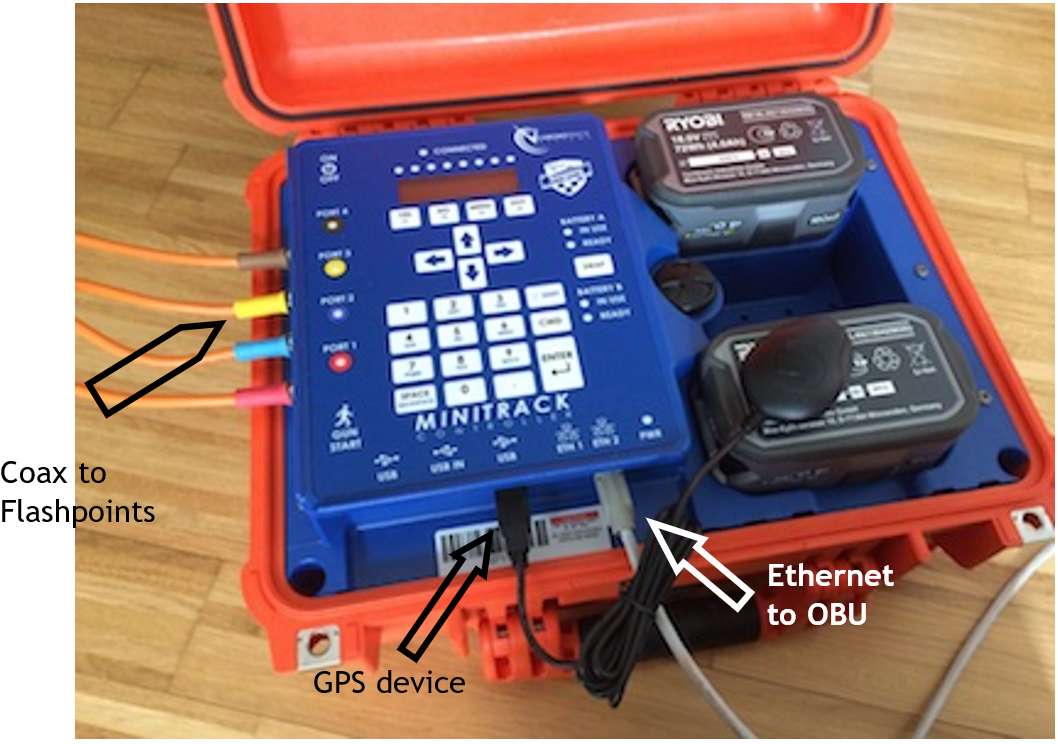
- MiniTrack Controller with batteries and GPS device
- Two Flashpoints
- OBU (
DellLaptop)DellLaptop with integrated sim) with LTEstick,stick(withoutGPSsim) , 2xGPS receiverand+satellite modemUSB-C-Adapter - 2x Coax cables for 2x flashpoints and 1x Ethernet cable
- USB-C Powerbank
Connect to the OBU:
Satellite modem via USB-Hub with Ethernet- GPS device
viadirectly in USB-Hub with EthernetPort - LTE stick via USB (SIM card provided by local Red Bull team) directly to OBU
- MiniTrack via USB-C-Adapter to Ethernet cable connected
to the USB-Hub with Ethernet- Check Firmware: 7.7.2.23 (Menu “7-3-2”
or in OBU status when connected)) - Check GPS reporting setting: 1s (Menu “4-6-3”)
- Check Firmware: 7.7.2.23 (Menu “7-3-2”
- Power supply via USB-C Powerbank (use 45w Port)
Connect to Minitrack:
- Flash Point antennas via coax cable
- GPS device via USB
- OBU via Ethernet cable
Important:
Make sure the Flash Points and cables are mounted to the roof construction with maximum stability while driving. All cables should be put through the back window on the passenger side of the car.
Additionally check the screws of the FlashPoints, if they’re tighten up.
Do not close the window completely!
3.2.1 Start-up procedure of the Catcher Car Configuration on the Race Day
- Start OBU without any USB devices connected
- Plug LTE stick with local SIM card, GPS receiver
and satellite modeminto the OBU - When you get a GPS fix (GPS receiver status
green)yellow), connect MiniTrack via USB-C-Adapter-Ethernet cable - Start MiniTrack
- Connect second GPS receiver to the MiniTrack
- Make sure all connected devices have a solid connection (GPS,
Satellite Modem,MiniTrack, LTE Stick) - Start Lenovo Tablet and connect it with WIFI of the OBU (should automaticly work, check here: stay connected)
- Open DAU interface on Lenovo Tablet (connect to external power if possible (USB Car Charger connected with USB-C to USB-Micro Cable. Or directly in USB-C socket of the car.))
- Switch the MiniTrack to Immediate Mode (3-3-2). Otherwise you will see the caught runners on your OBU around five seconds after passing them instead of immediately.
- Please check if everything is working properly BEFORE the start
3.3 Start Line
Austria and Germany will have start lines this year (check Startline Guide)Guide).
For all other countries we will notNOT have a start line.
3.4 Split Points: 15K / 44K
The split points located at 15K and 44K consist of a MiniTrack with a TP Link Modem and two Flashpoints.
Important: New 2025 – The 40K split willis befrom setupnow on at KM 44.
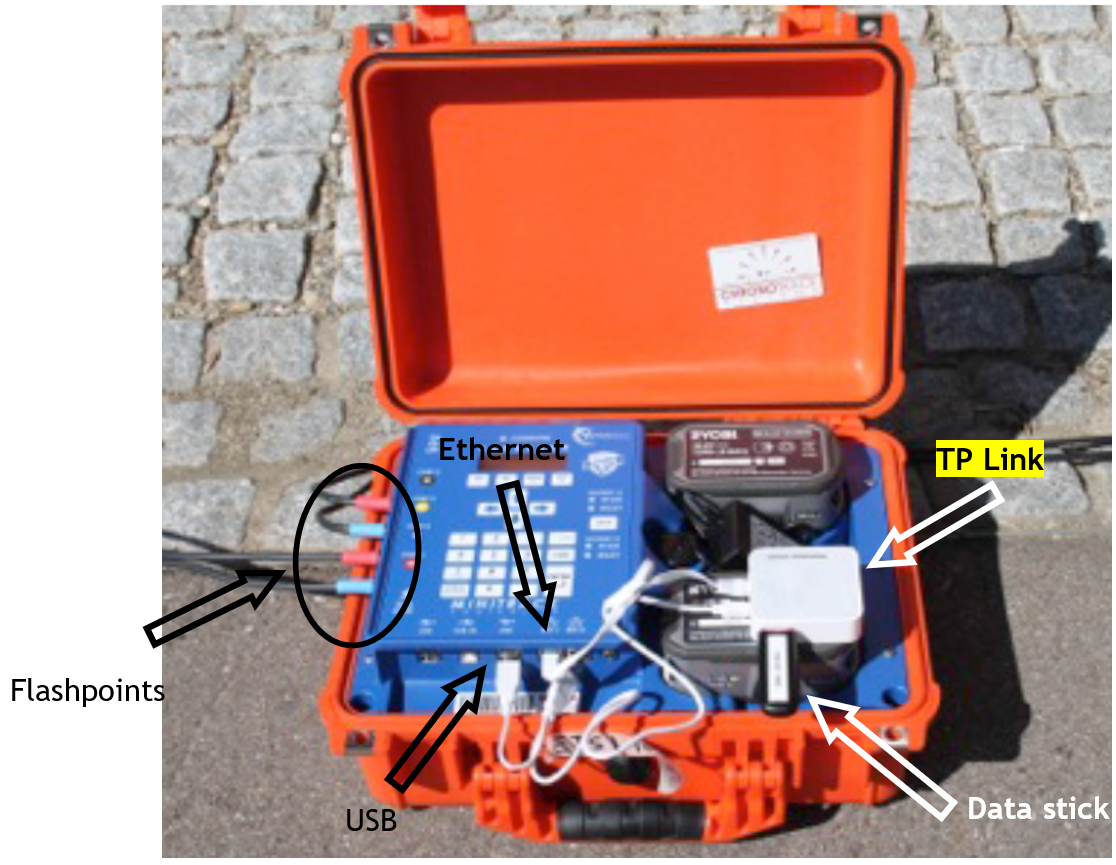
- Connect to the MiniTrack:
- TP Link Modem via Ethernet (data) and USB (power)
- Flashpoints via coax cable
- TP Link Modem via Ethernet (data) and USB (power)
- Connect to TP Link Modem:
- LTE stick with SIM card via USB
- Connect the MiniTrack to the server:
- When the TP Link is connected to the MiniTrack and working successfully go to
Menu> Server> Primary Server> Connect (Menu “2-1-1”)
- When the TP Link is connected to the MiniTrack and working successfully go to
Settings MiniTrack:
- Firmware Version: 7.7.2.23 (check in Menu “7-3-2”)
- Server address: 50.17.233.218 (2-1-2)
- Event name:
WFL04052025WFL10052026 (1-3-1) - Point name: <YourIOCcode>15K / <YourIOCcode>
40K44K (1-3-1)
3.4.1 Setup and start-up procedure of the Split points - step by step
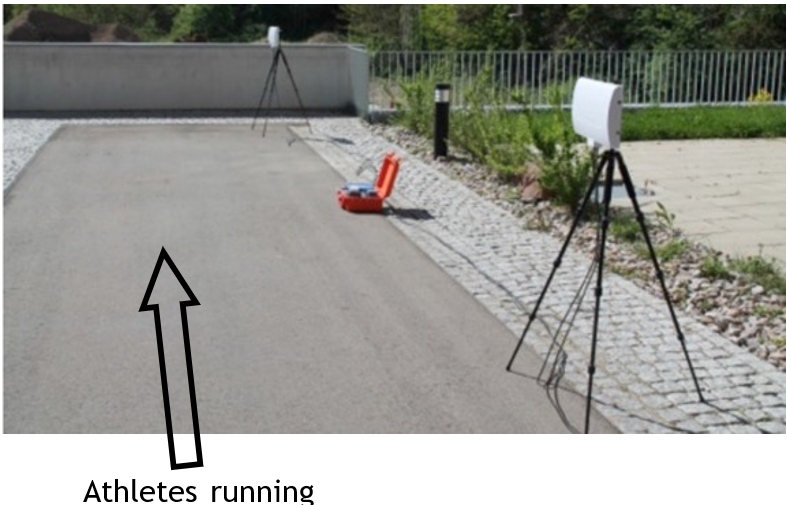
- Setup the Flashpoints along the track (the Flashpoints should be mounted at chest height (about 1.5 meters)
- Power on the MiniTrack
- Synchronize the controller with the current GPS time
viafrom the OBU - Connect the Flashpoints with the MiniTrack
viawith the coax cables - Connect the MiniTrack with the TP Link Modem
- Check if Flashpoints are working by using the white RFID test card which is mounted on the inside cover of the controller (a blue/green LED flashes if the antennas are working. If not, please contact Race Control
immediately )immediately) - Connect the MiniTrack to the internet(2-1-1)
(s.p.21) - A connection to the internet is very important at the split points for live results. So please check if the modems are online at these positions. This is more important than setting up the split point at the exact position.
Important:
Do not shut down the MiniTrack after synchronizing the time with the OBU time on Race Day!Day!
3.5 Frequent Allocation
In general, frequency allocation only concerns ETSI controllers!
For all locations using datacapo equipment, the controllers are already preset.
The Catcher Cars use the frequencies A and D.
Please run the 15K and 44K line on C so they don’t interfere with the Catcher Cars when they pass.