
2. Software
To realize a live scoring system for the Wings for Life World Run, special software has been developed. The On-Board Unit (OBU) for Catcher Cars, the Driver Assistance Unit (DAU) and a Tracking App for phones that accompany leading men and women. More information about these software components and how to use them is given in the following.
2.1 On-Board-Unit (OBU)
The On-Board Unit (OBU) is the core of each Catcher Car. It is an Dell notebook, which associates RFID reads with GPS data and passes on data to our scoring server.
2.1.1 Info/Overview
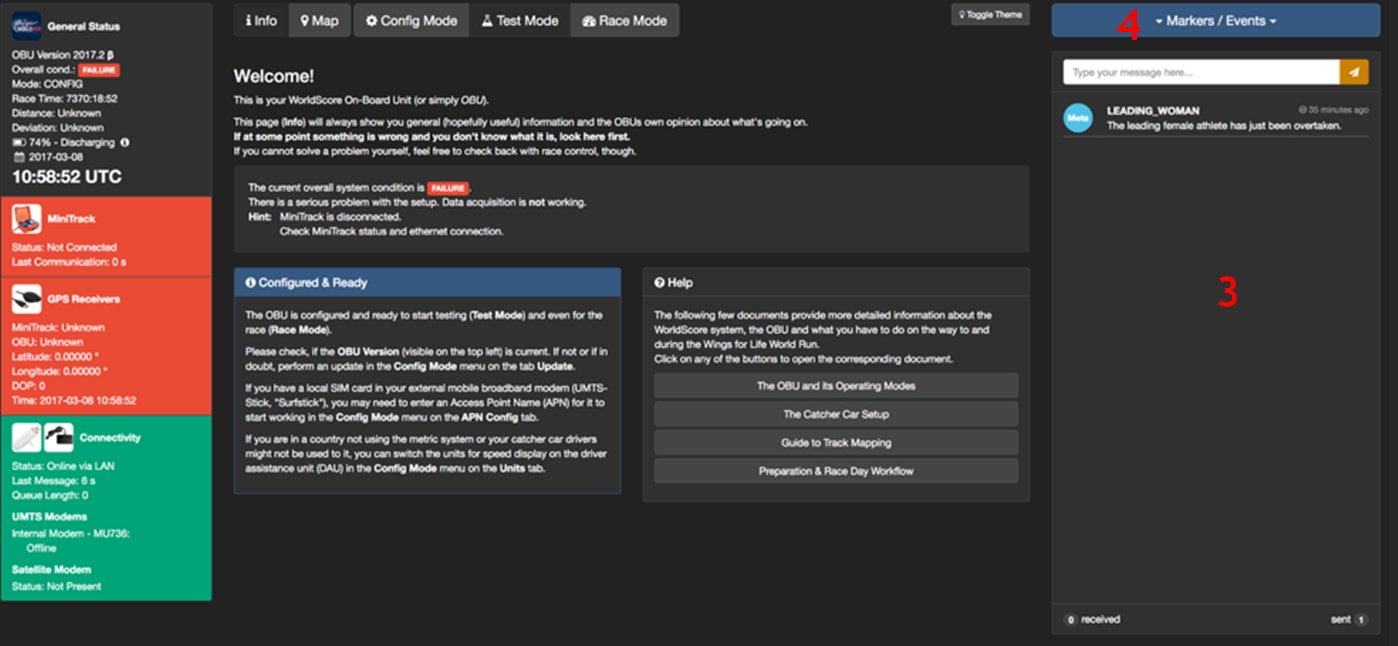
The OBU can be set into 3 different modes:
Config Mode:
It is used for applying settings.
Test Mode:
Should be used for tests before the race, which are not relevant for our scoring software.
For example, for the rehearsal or any test runs you do for yourself. Test Mode exactly resembles Race Mode, which allows you to familiarize yourself with the system.
Race Mode:
Should only be used for the race itself on Sunday. If you want to get used to the interface in advance, use Test Mode.
Components of the OBU interface (see screenshot above):
- Here you’ve got some general information about the OBU and its settings (version,
battery status, time in UTC, Mode…) - This window indicates a quick overview about the connected devices. During the race, each device (GPS, Satellite Modem, MiniTrack, UMTS-Stick) should be highlighted green
à working connection. - This is the chat window for communicating with Race Control and your fellow timer on the other OBU in your country. Use it to stay in contact with your supervisor.
- With this button you are able to set some markers/events. When a key situation occurs during the race, please select the appropriate marker.
Especially important markers available in (4) are the following:
Leading woman got caught à “Leading woman”
Leading man got caught à “Leading man”
Race Over à “Race over”
This function is very important for Race Control, scoring and live reporting to TV.
2.1.2 Map
This feature shows you the current position of the OBU on a map. After setting your location in the Config Mode your racetrack is available.
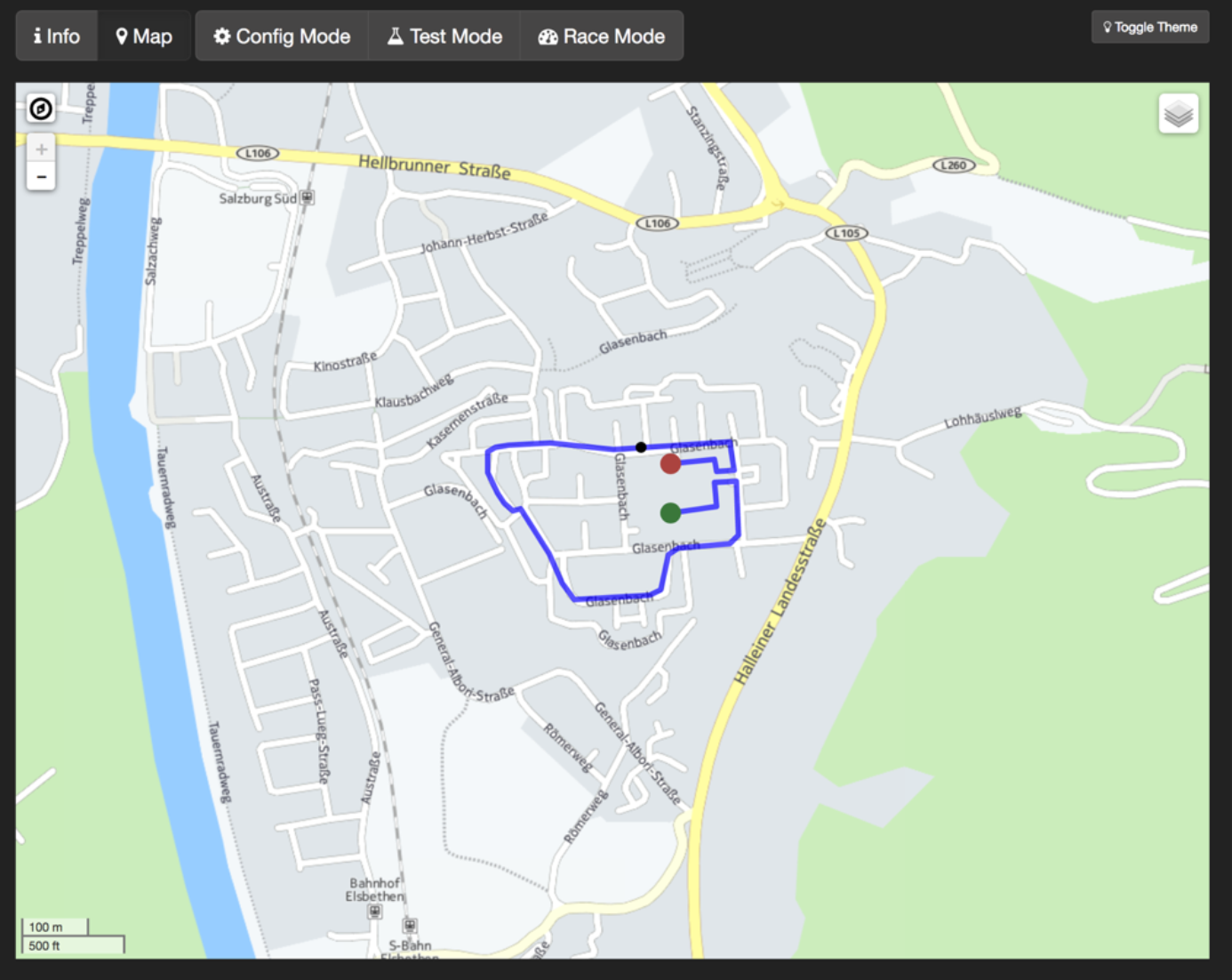
Your location is only shown if you have a GPS receiver connected and working.
2.1.3. Config Mode
The Config Mode should be used for applying settings.
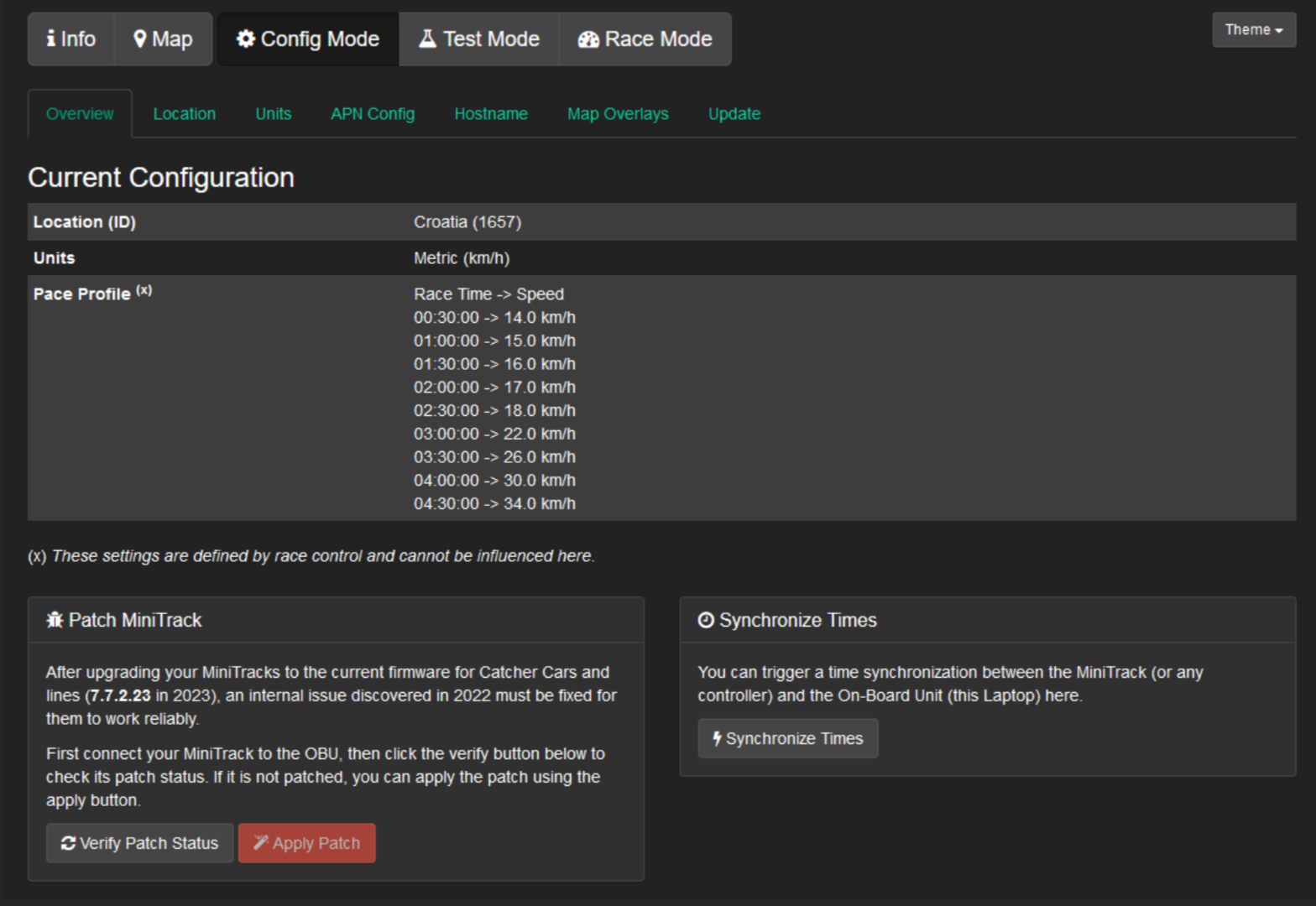
The tab “Overview” shows the general pace-profile of the Catcher Car.
Here you will find the “Synchronize Times” button for synchronizing the OBUs system clock and the Chronotrack controllers with the current GPS time.
Also, there is a “Patch MiniTrack” function: You can press “Verify Patch Status” to see if the Controller has the correct firmware with patch. If it’s not the correct one, you can press “Apply Patch”, the Controller will reboot shortly after you pressed it.
Use the Config Mode ONLY before the race
NEVER during the race
Make sure the OBU has a GPS Signal before synchronising the time
Time Sync:
Step 1: Connect a GPS receiver to a OBU
Step 2: Wait for the GPS status on the OBU to turn yellow or green
Step 3: Connect OBU via Ethernet with all controllers
Step 4: Press "Synchronize Times"
Step 5: Check if the time on the controller matches with the time on the OBU - it shall peep and blink when successfully synced
2.1.4 Location menu
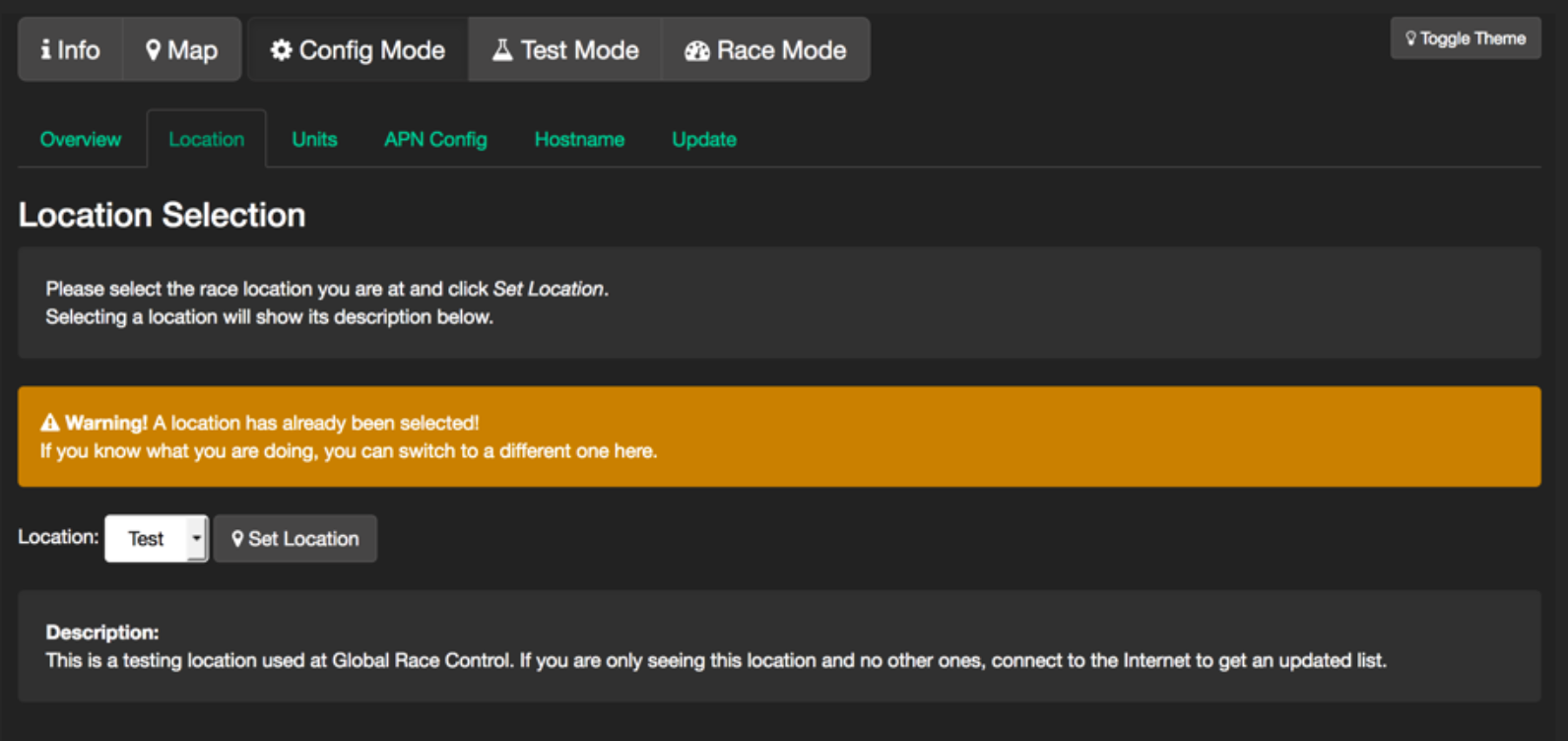
On this tab you are able to set your location. Only if you have done this successfully you can see your position on the map and use the Test or Race Mode. As soon as you have chosen the location, the track will automatically be downloaded. When the download is finished, you can see the track on the map.
2.1.5 Units / Display
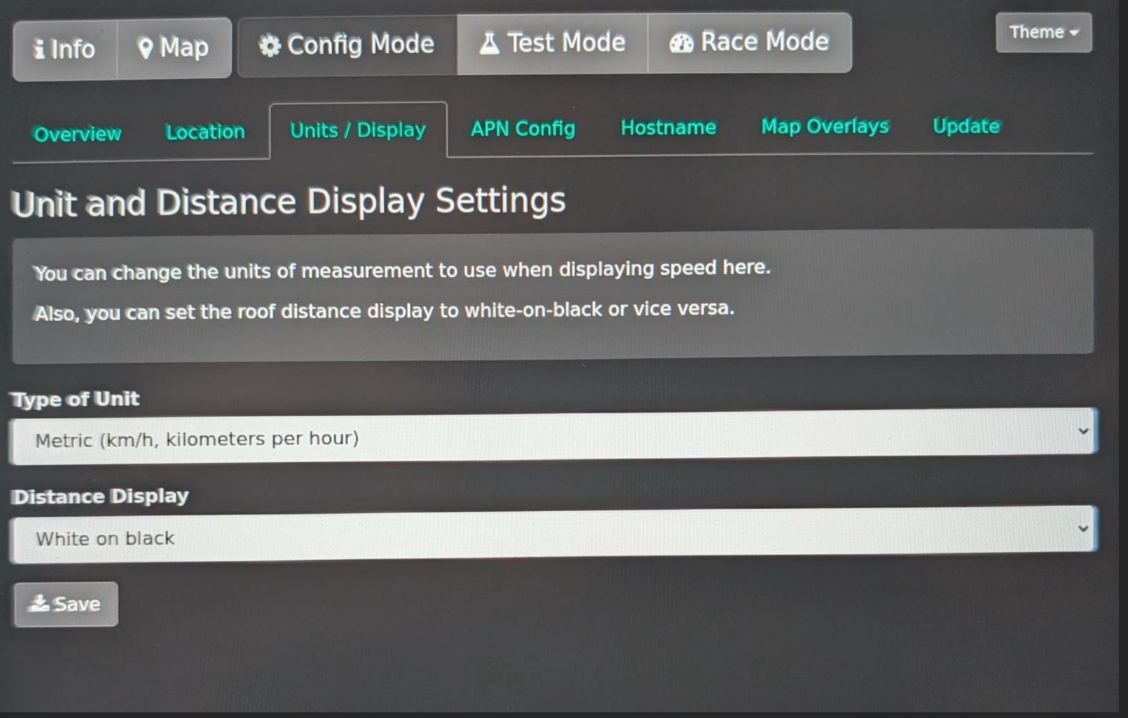
Here you can choose which units for speed shall be used on the Driver Assistance Unit (DAU). You can set this according to the preference of you Catcher Car driver or the labelling on your Catcher Car’s speedometer. This makes the DAU easier to understand.
You can also set your KM-Display on Darkmode or Lightmode, check before the race in what mode the visibility is better. E.g. if it’s cloudy or very sunny.
2.1.6 APN Configuration (Mobile Network)
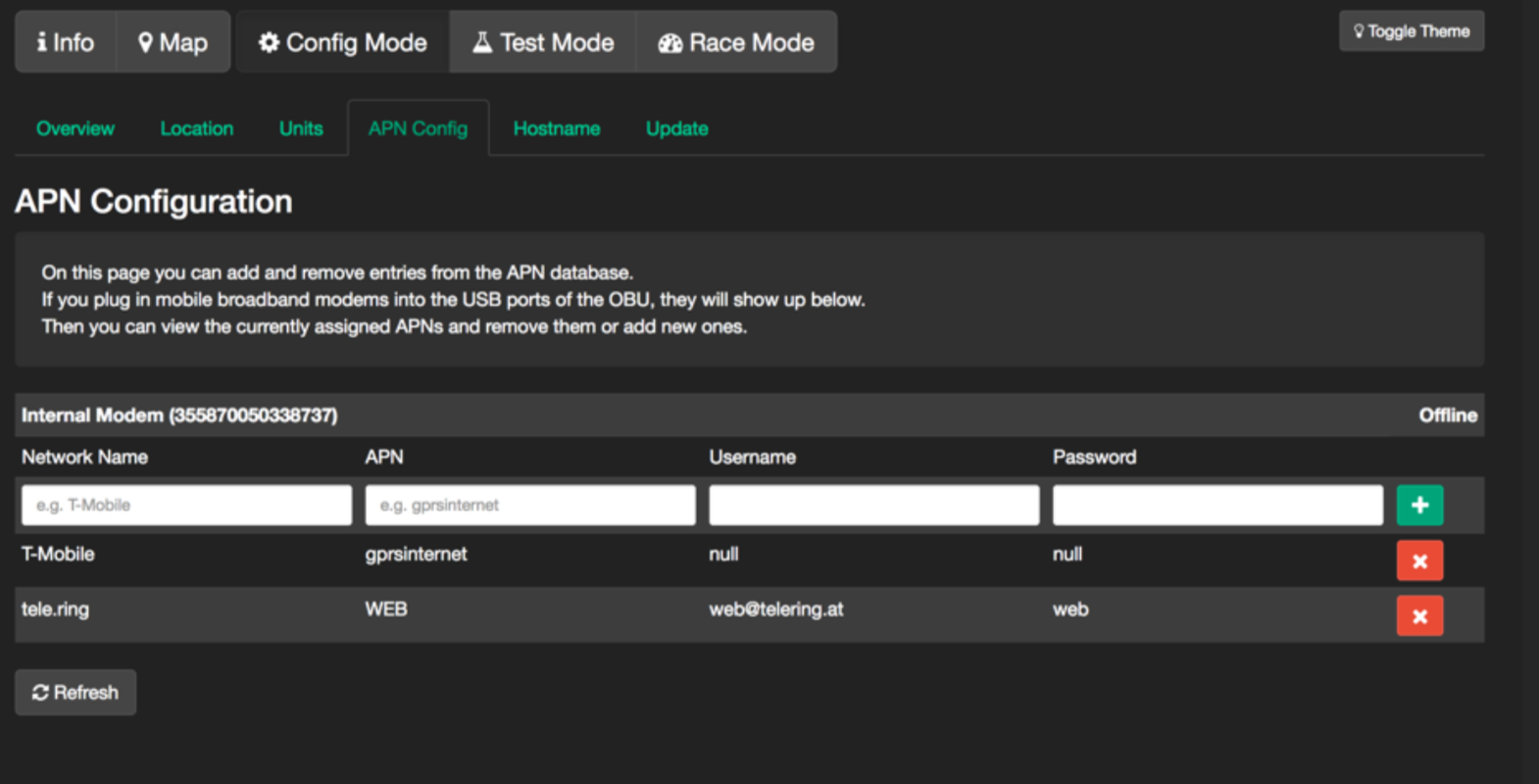
The APN (Access Point Name) is the name of the mobile network, to which you want to connect the OBU via LTE-Stick or internal modem. It depends on the network provider, the SIM card is from.
The OBU has a database of APN settings for various providers at its disposal.
However, you may have to enter the settings manually if you use SIM cards of local providers, which are not in that database.
2.1.7 Hostname
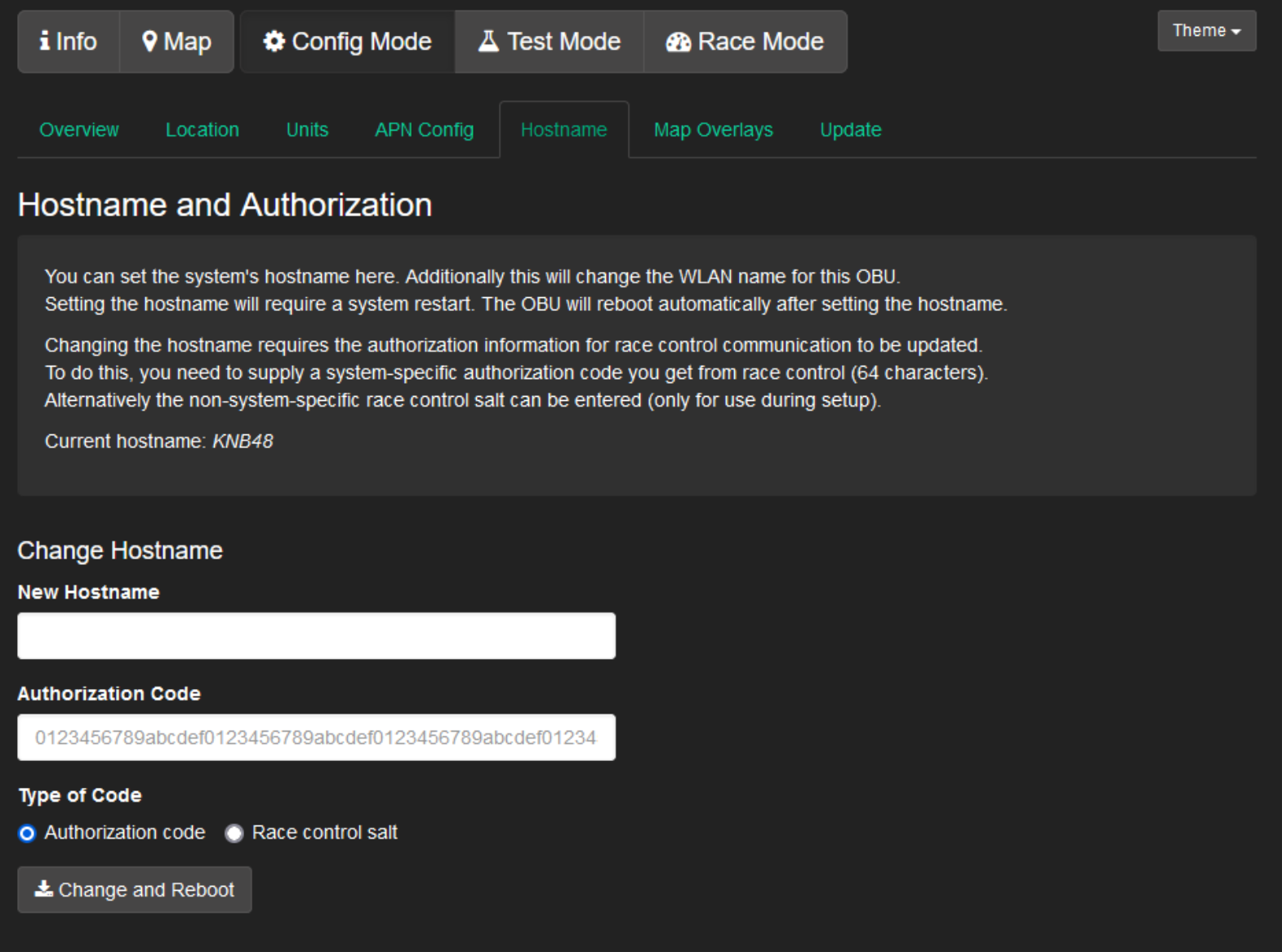
The hostname is the name of the OBU and also a part of the name of the OBU’s own Wi-Fi.
Here you can change the hostname of the OBU.
When changing the hostname, you will need an authorization code from Race Control to authenticate the OBU with the scoring server.
Important:
Do not change the hostname without orders from Race Control. If it should be changed, Race Control will send you an authorization code.
2.1.8 Map Overlays
The OBU allows you to download incremental updates to the map data that is installed on it. This can be useful if the race track was moved outside of the covered area.
If you notice, e.g. during km marking, that parts of your race track do not have maps showing on the OBU or the DAU, tell Race Control and they can provide you with such an overlay and instructions how to install it.
In any case you must connect the OBU to an Ethernet network to download map data. It will not allow you to start a download via a mobile internet connection. 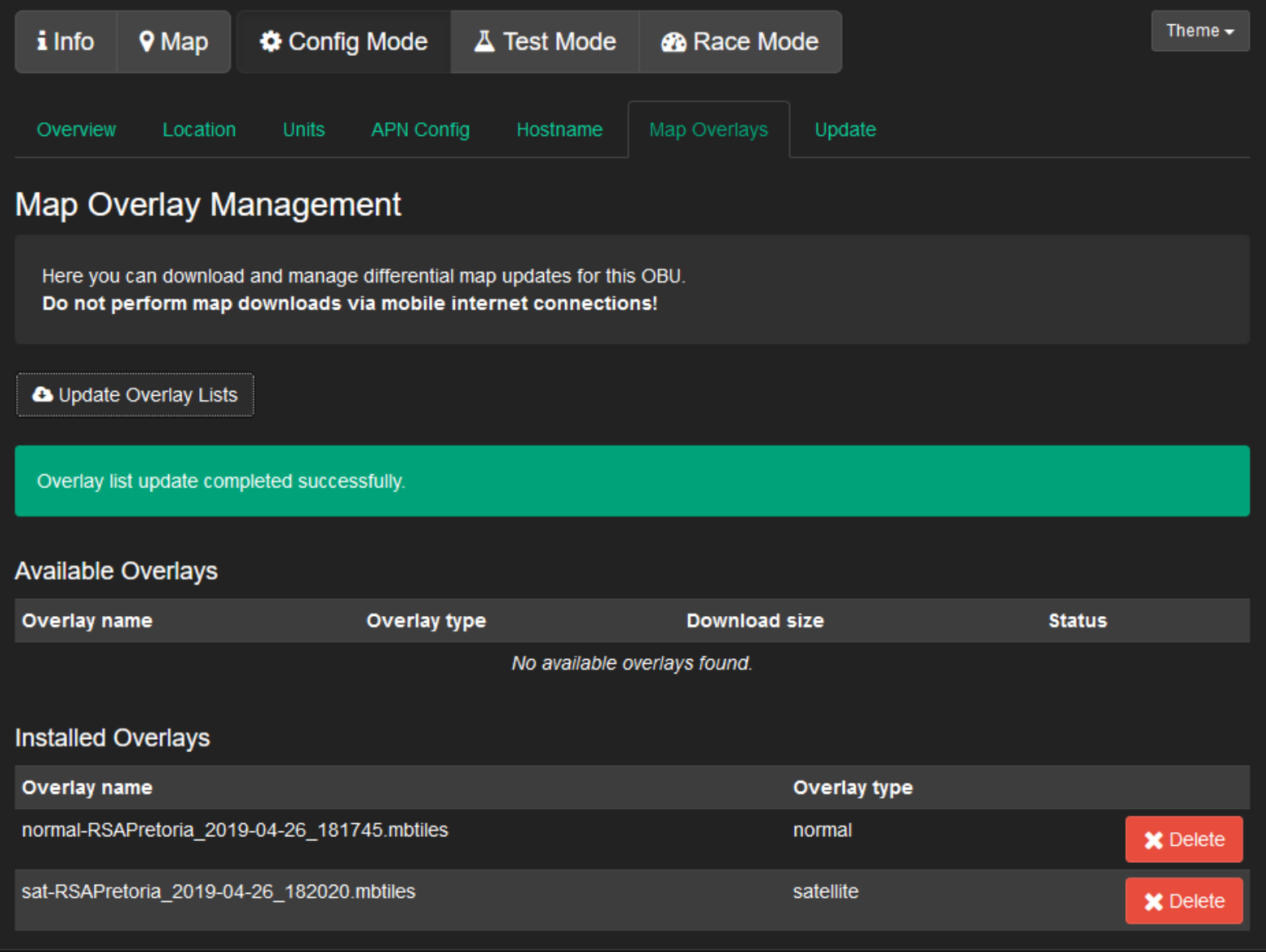
2.1.9 Update
One of your first steps is to update your OBU to the latest software version if there are no other instructions from the Race Control. Do not update the OBU after the final tests, except if explicitly told so by Race Control.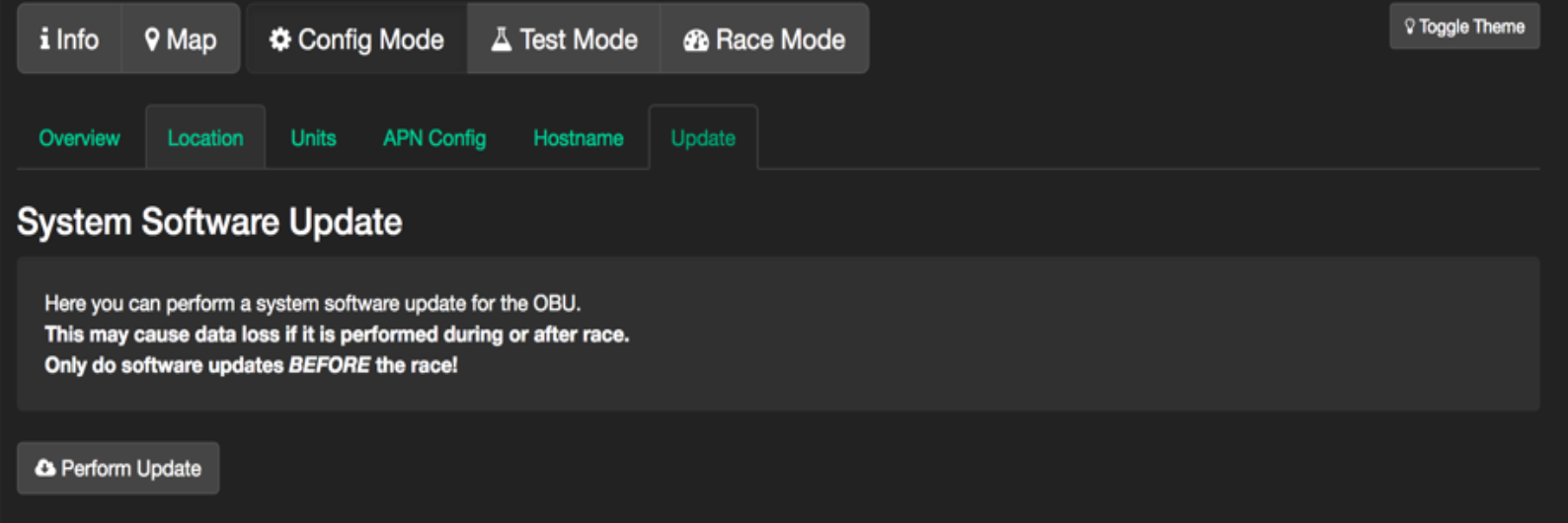
2.1.10 Enter Test -/ Race Mode
Entering the Test or Race Mode you must choose if you are the Main or Backup Car.
If any problems occur during the race, you can change this setting after consulting with Race Control. This way, the Backup Car can change its function and become the Main Car and vice versa. Just make sure that both OBUs are not operating in Main or Backup at the same time. There can only be one Main and one Backup Car. 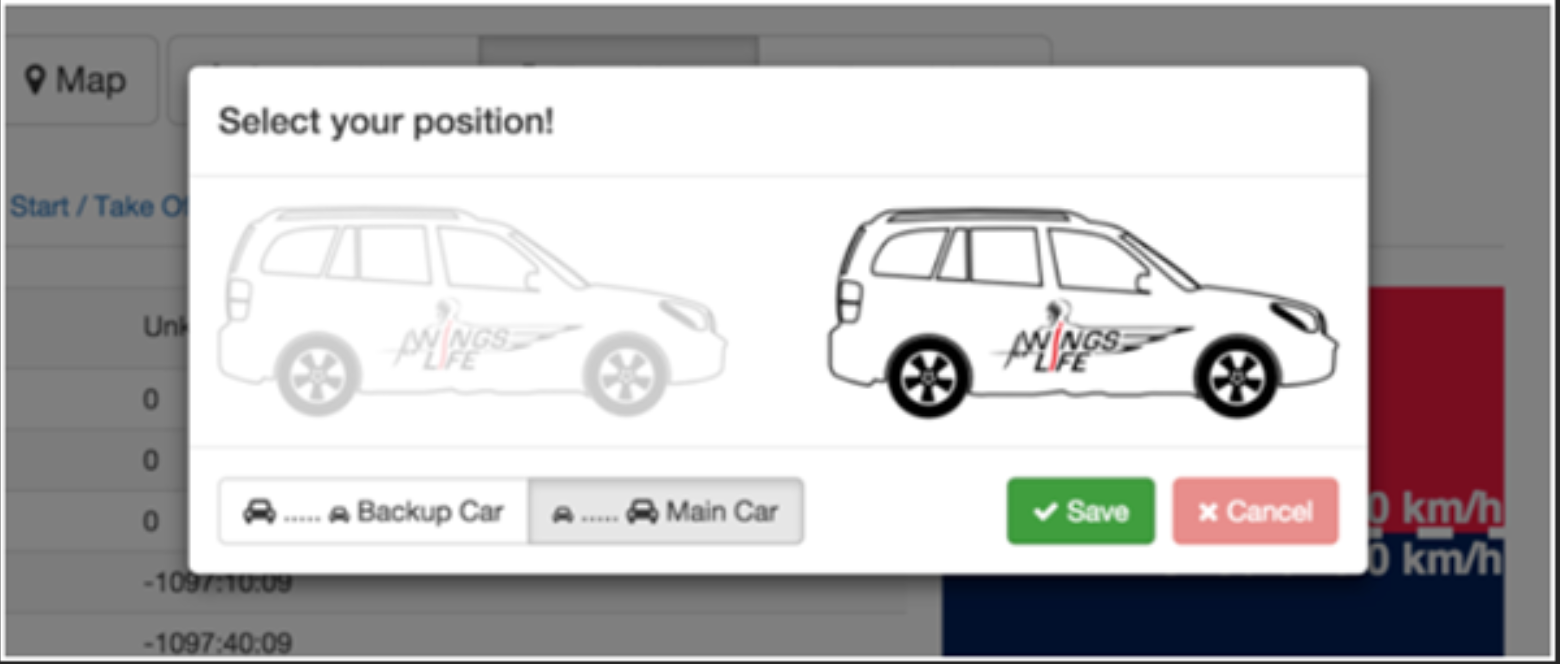
2.1.11 Start / Take Off
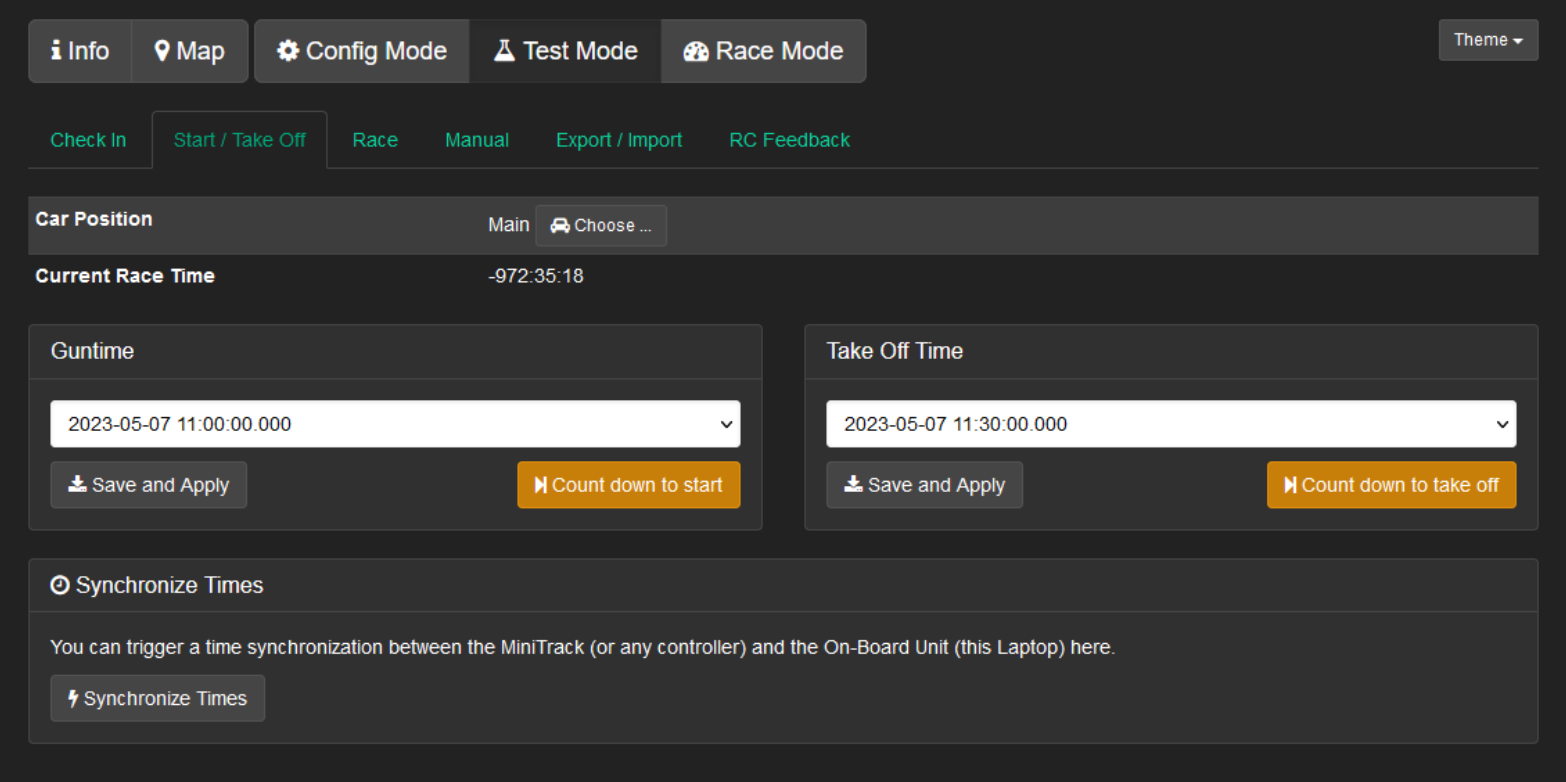
You are responsible for conveying the official time to the local Red Bull teams.
If the race has a delay you can enter the new starting or take off time here.
Important:
Only set time manually if you get orders from the Race Control!
2.1.12 Race
The tab “Race” shows you the distance of each athlete you overtake.
It’s very important to set the MiniTrack to Immediate Mode (Menu “3-3-2”) for receiving live data. Otherwise, the distance will be shown with a delay of approximately 5 seconds. 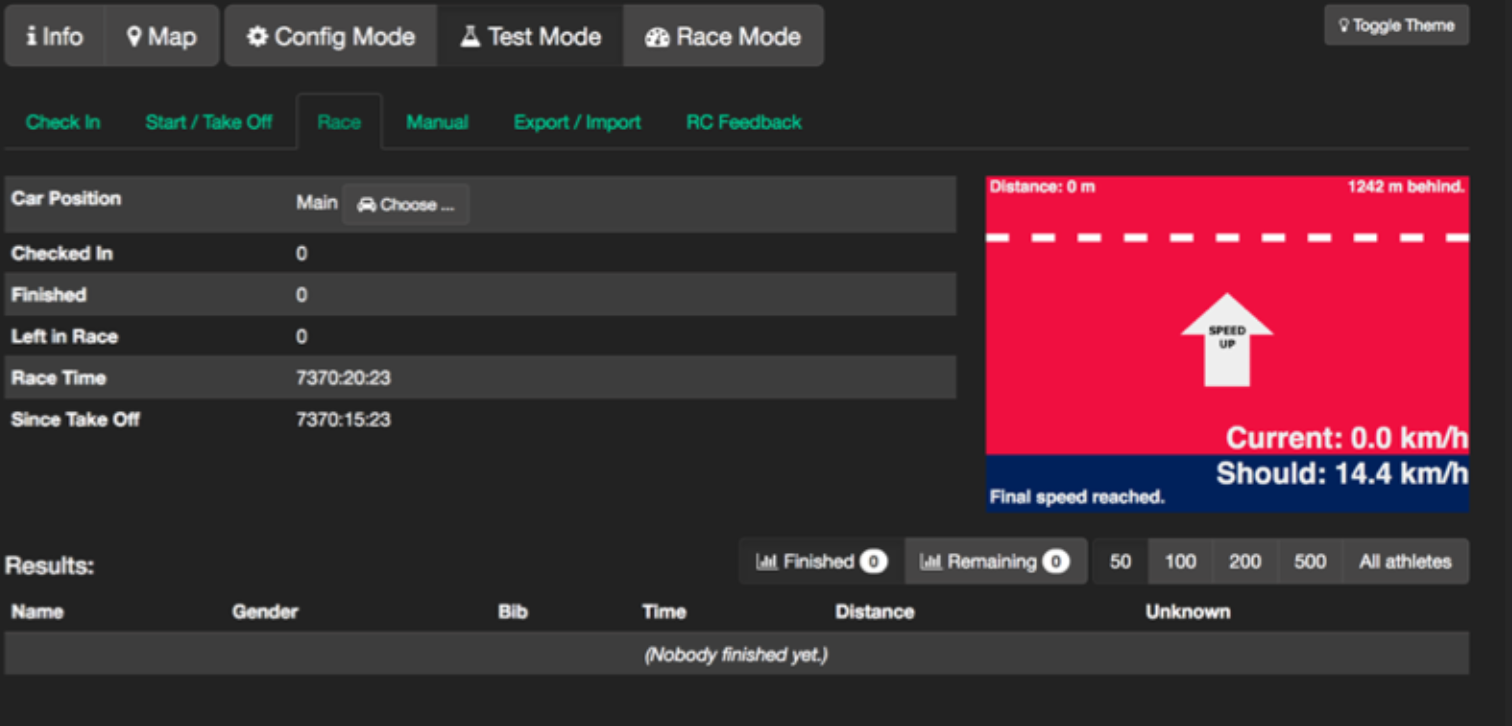
The red/blue window on the right is a similar but smaller version of the speed profile assist which the Driver Assistance Unit (described below) is using.
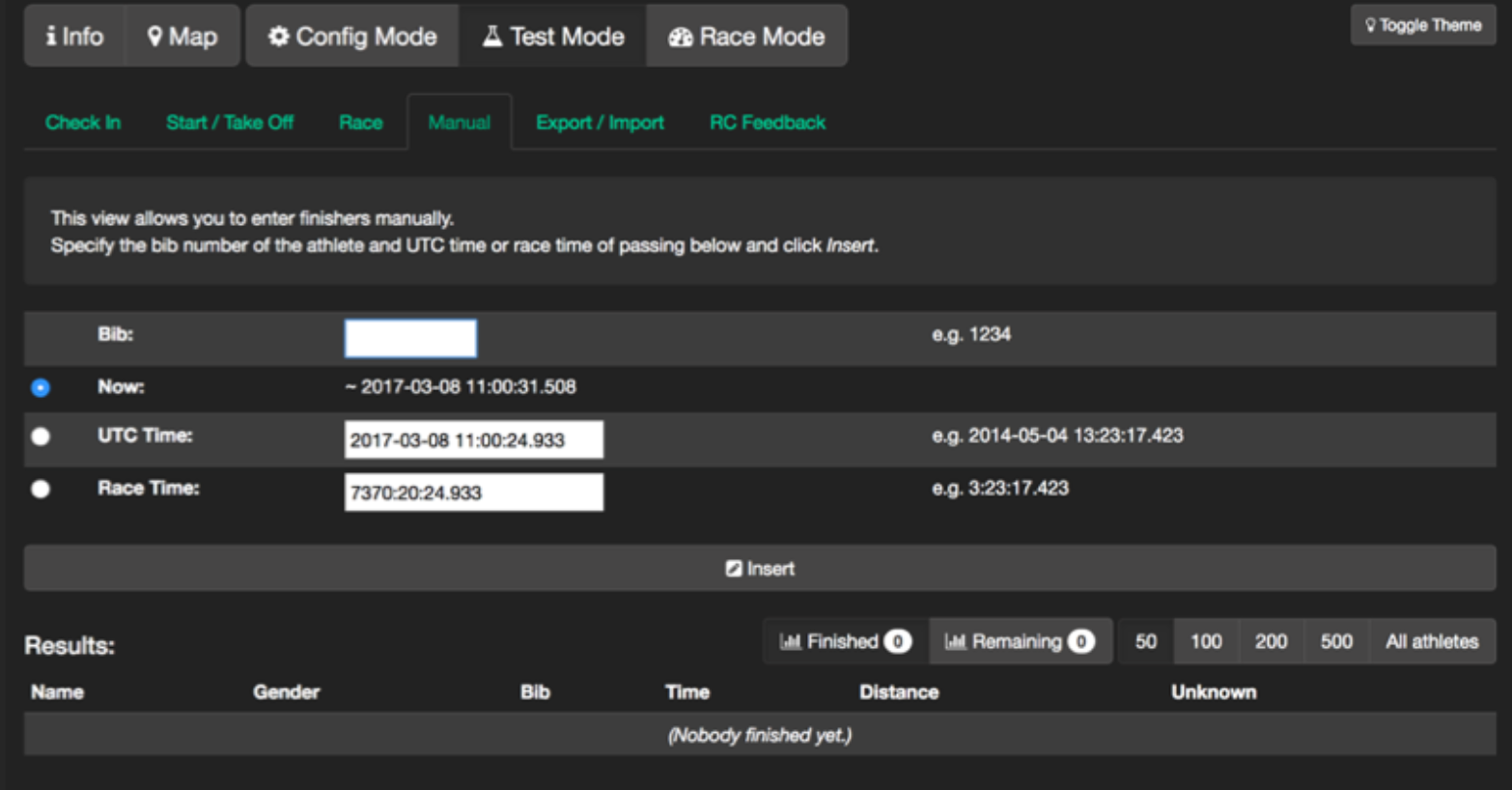
2.1.13 Manual
This feature should be used for entering bib numbers manually. Please try to enter all race numbers of passed runners manually after KM 44. The system will prefer the RFID reads over your manual entries. But in case we miss some participant we can use this manual time as a backup. Also, we can ensure we have got all information about the top athletes.
2.1.14 Export / Import
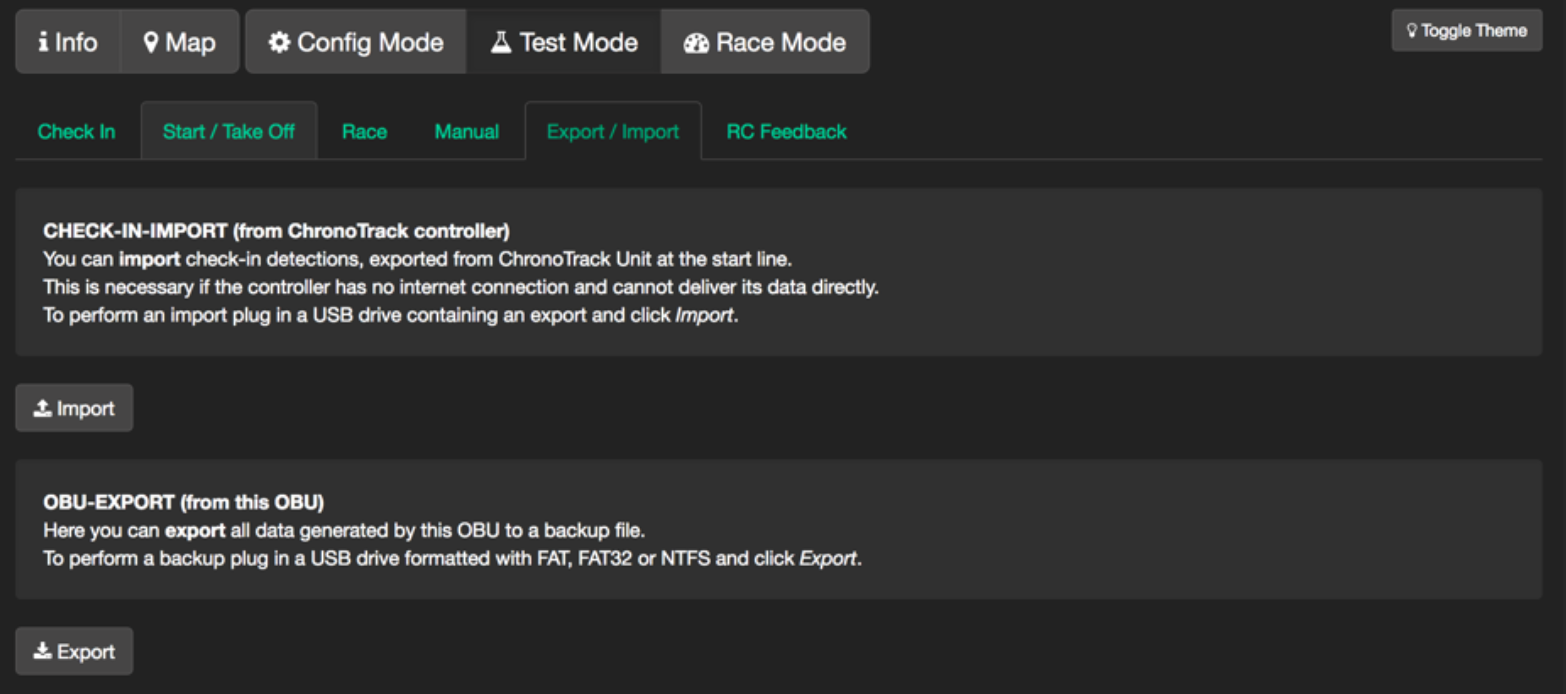
Export: You can export all data generated by the OBU to a USB drive. After the race you have to do this and send the resulting file from the USB drive to Race Control via email.
Import: If you saved data of a Chronotrack controller on USB drive you can import it into the OBU to upload the data. As there are no start lines this year this feature will not be used.
2.1.15 RC Feedback
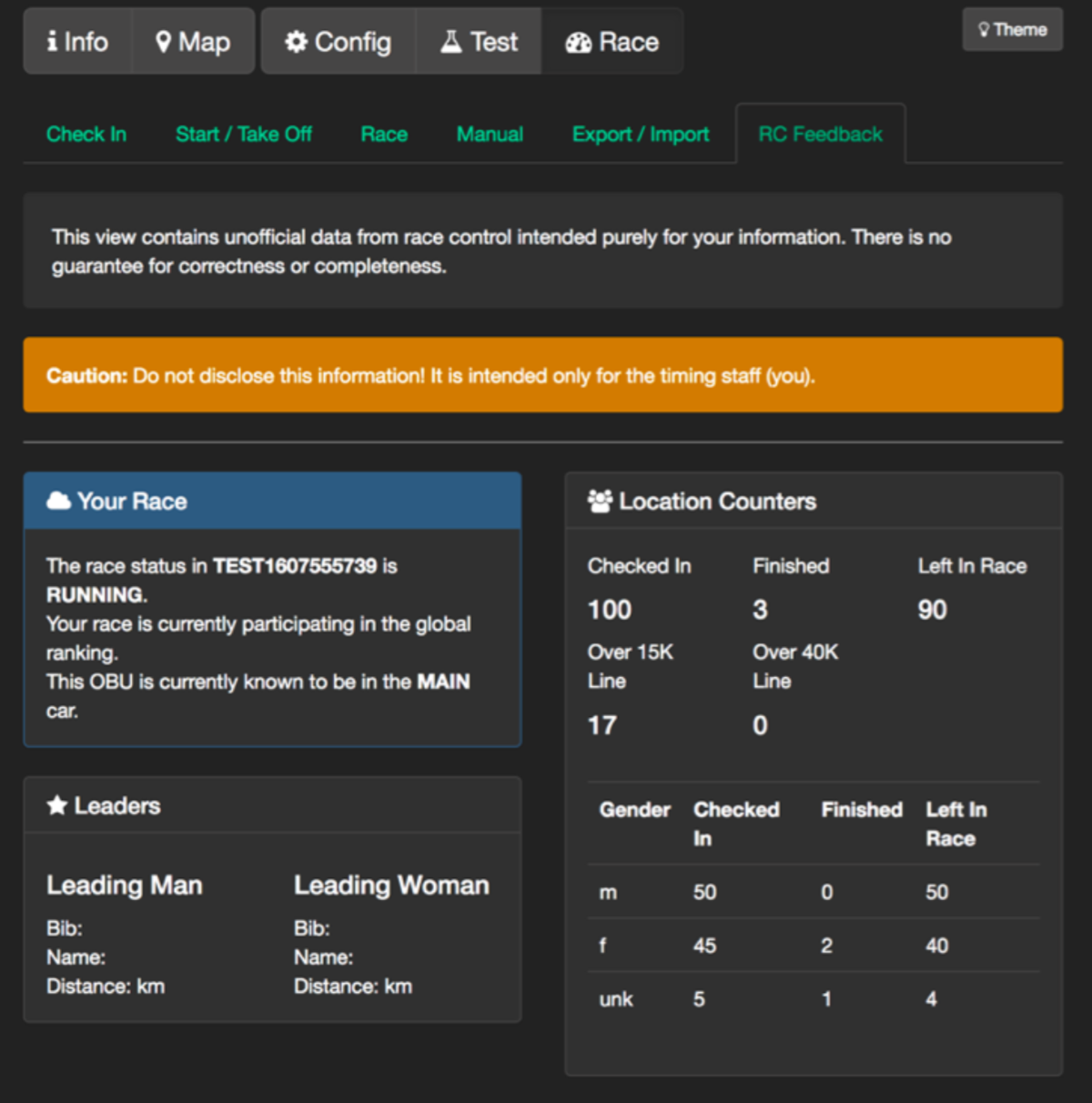
Here you have an overview about the remaining athletes and leaders. These data are only for internal usage and are not meant to be passed on to the local Red Bull teams. However, if you notice any kind of errors (incorrect leader, number of remaining athletes incorrect, etc.) please tell Race Control, so that they can fix it.
Important:
This information comes from Race Control. If Race Control asks you to verify something, you should not use the shown data on this page! Verify data with local teams!
2.2 Driver-Assistance-Unit (DAU)
The Driver Assistance Unit (DAU) is a Lenovo Tablet, which is used for showing the right speed (global pace-profile) to the Catcher Car drivers. It also shows the car’s deviation from the correct track position. Also, the DAU will be used as a countdown for the race start, the Catcher Car take off and for setting kilometer markers around the track. As soon as the OBU is started, it will set up an internal Wi-Fi to which the DAU gets connected.
The DAU should be set up to automatically connect with OBU’s Wi-Fi. If that does not work, you must connect them manually by entering:
Wi-Fi Name: "OBU- <OBU Hostname>" (e.g., OBU-SLO-MAIN)
Wi-Fi Password: "worldscore"
For opening the Main Menu of the DAU open the Firefox Browser and search in the URL-Bar for:
http://192.168.77.1/dau.jsp
if entered correctly an menu will pop-up: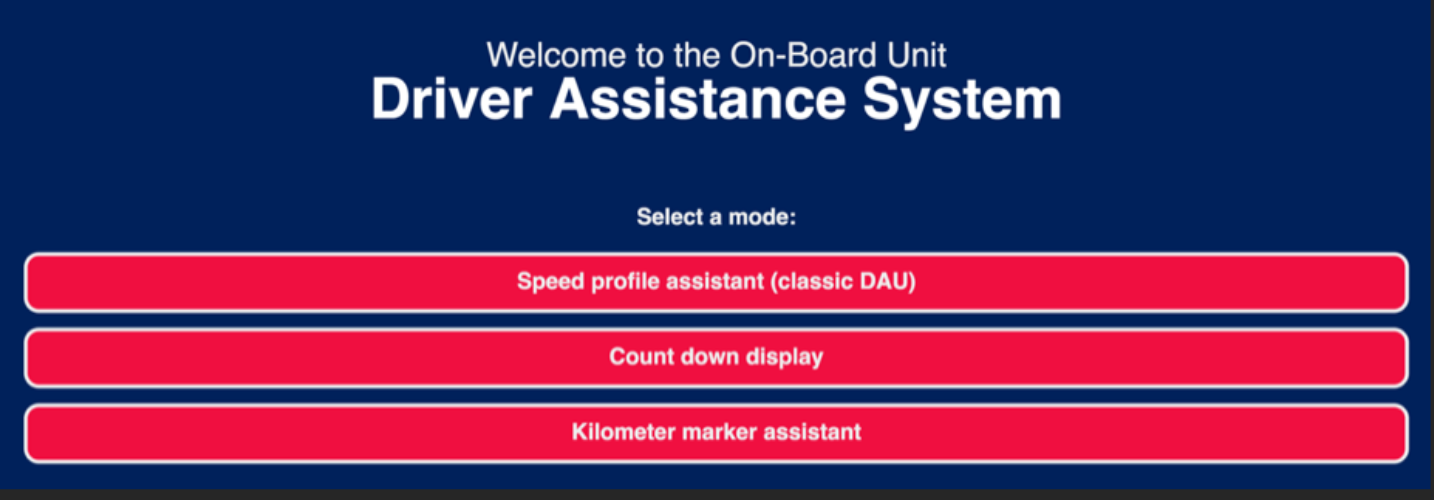
Here you are now able to select one of the three modes referring to the current task the DAU should assume.
Speed profile assistant:
This screen will be used by the Catcher Car Driver during the race.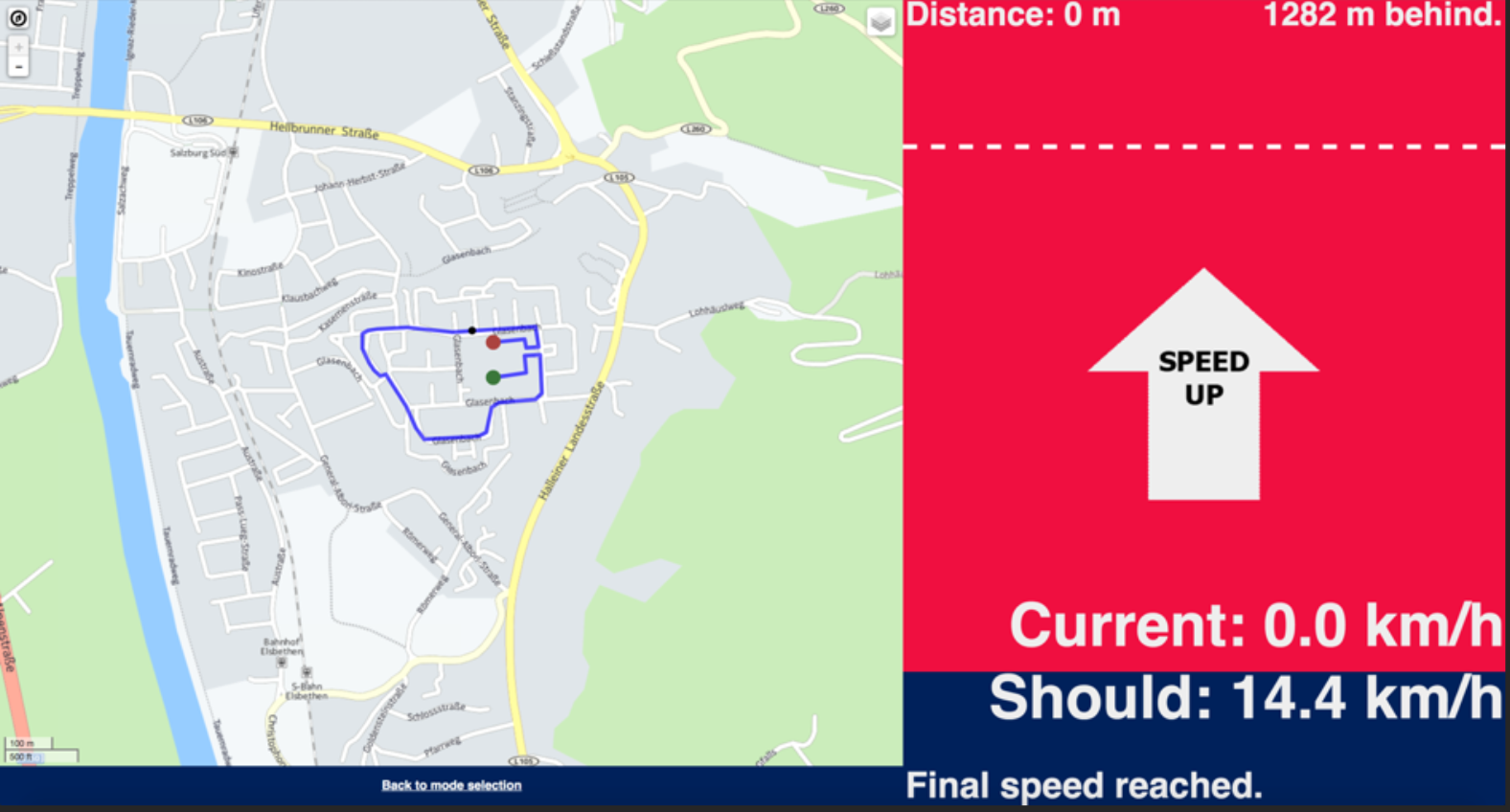
Important:
Connect MAIN-DAU with MAIN-OBU and BACKUP-DAU with BACKUP-OBU! Otherwise, the drivers will get wrong information!
Let the drivers practice driving with the DAU to maintain the correct speed!
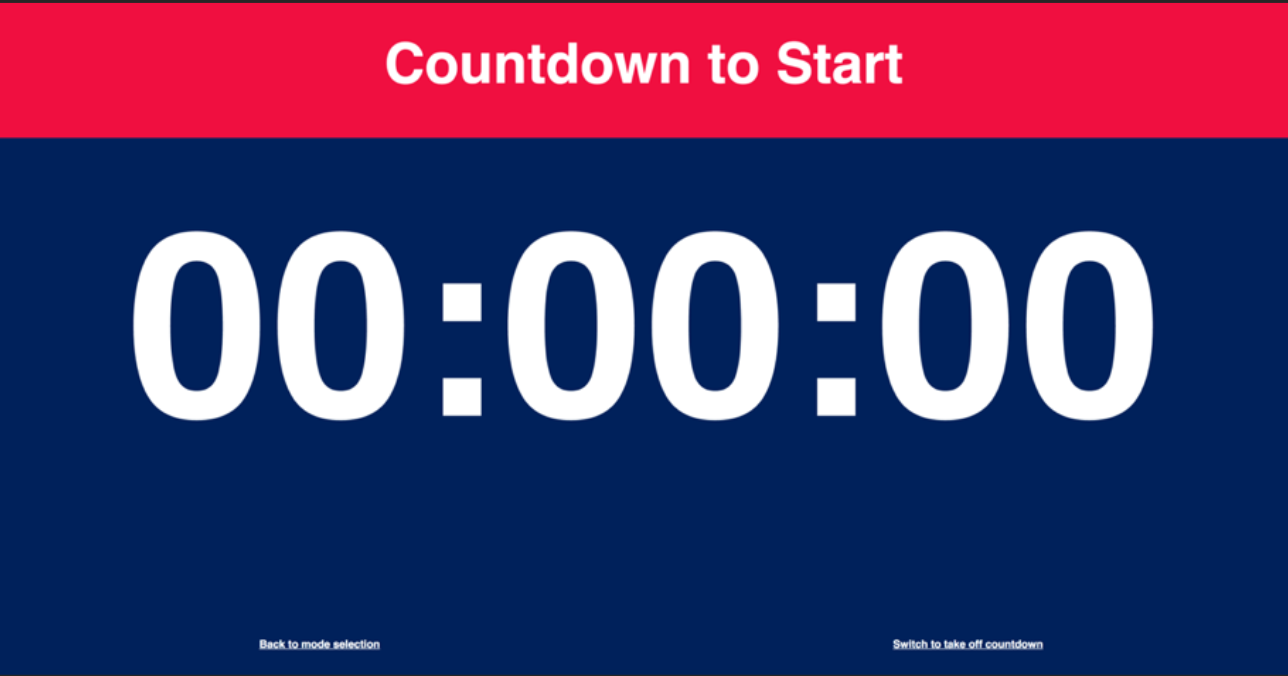
Countdown Display:
Use this screen during the countdown before the start.
Important: Check if the counter shows the correct time!
Kilometer marker assistant:
How and when to use this assistant is described in section 4.3. 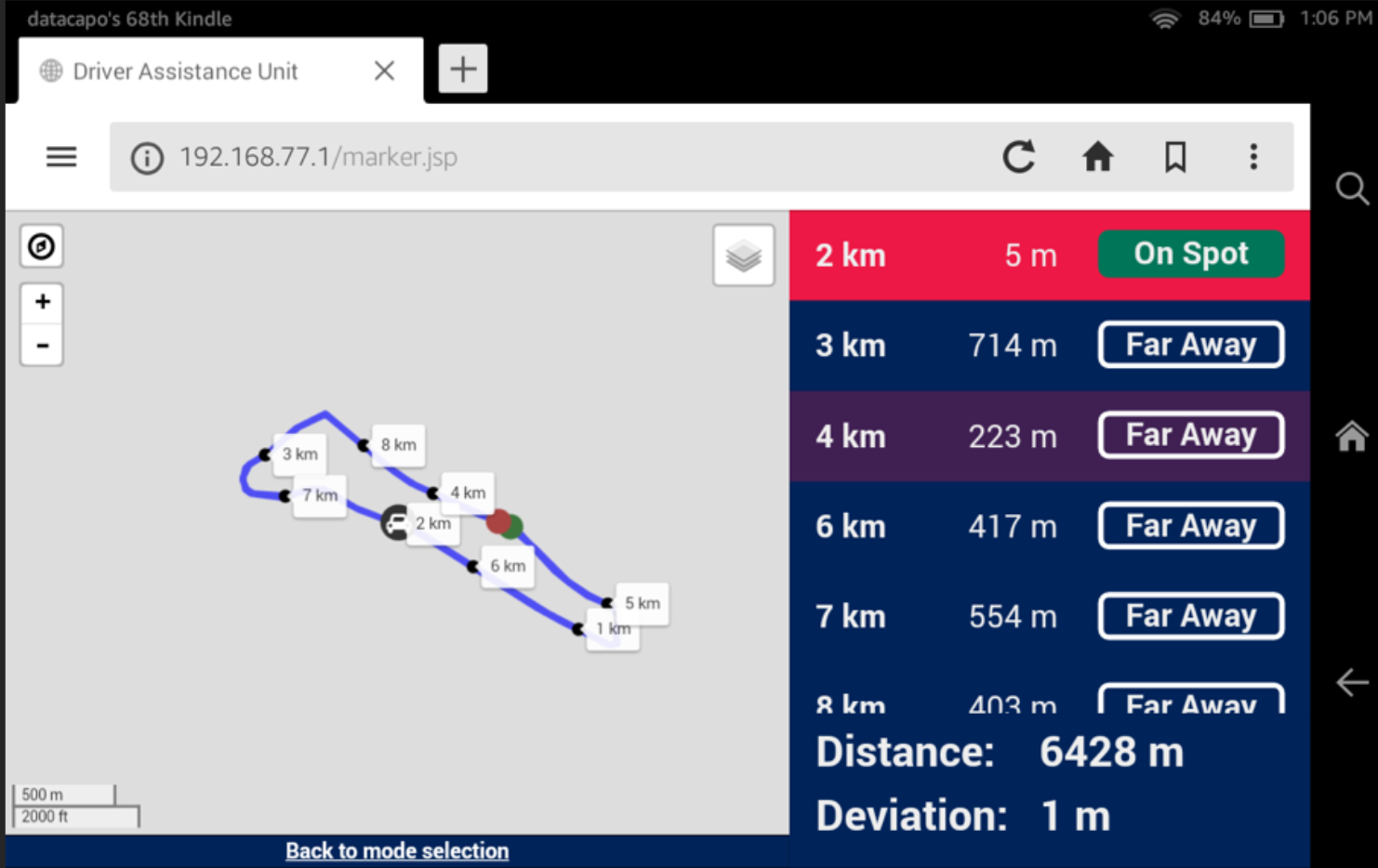
2.3 Tracking App
LG Q7 mobiles are used as leader devices. With the application, located on the home screen of each device, you can send bibs and distances of leaders.
Make sure GPS and mobile data are activated before starting the application.
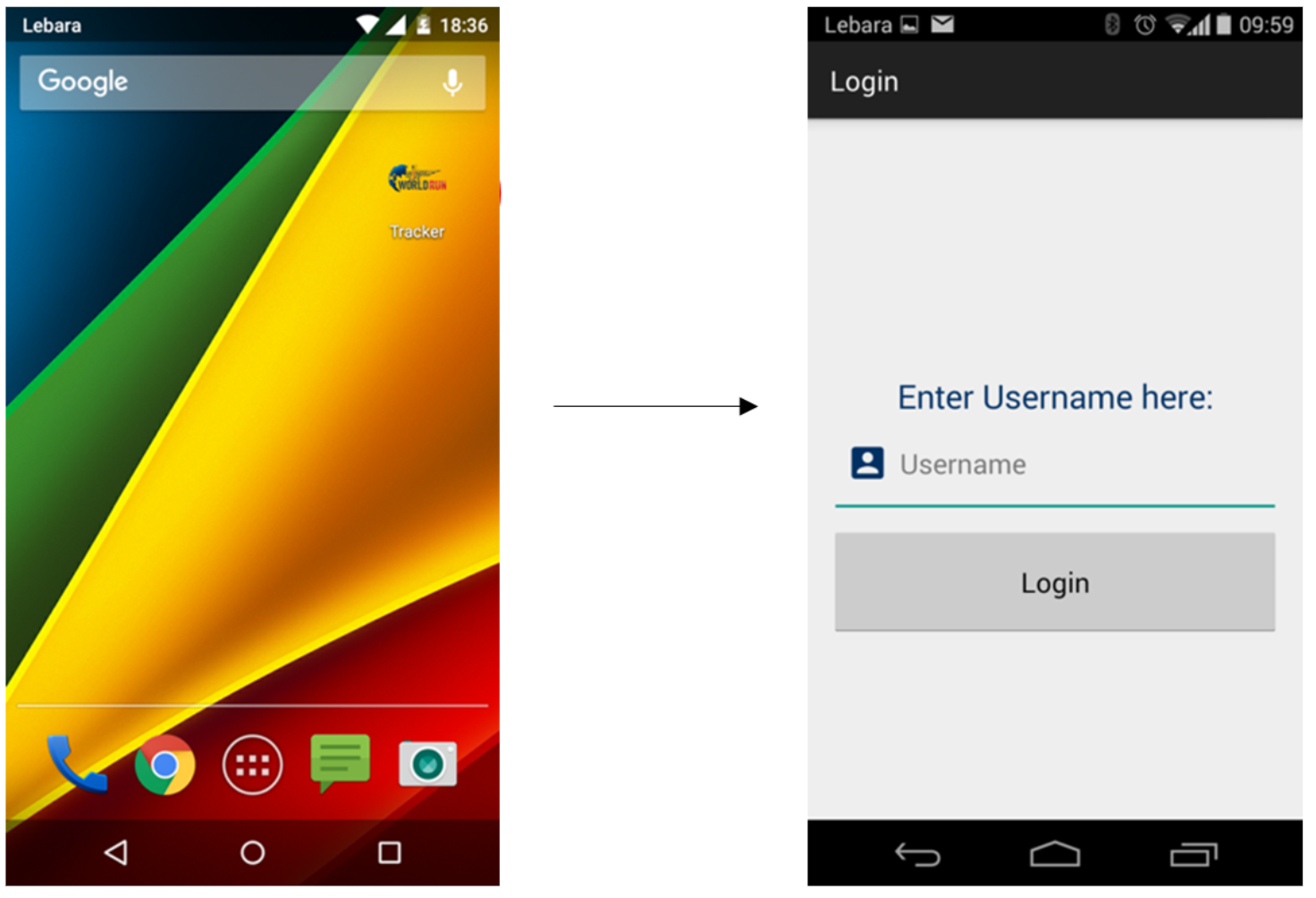
if you are not already logged in you have to type in the username. It is composed of your IOC–Code and the role of the device during the race:
-
- MEN: “<ioc>1M-N”, “<ioc>1M-T” = first man number , first man tracking
- WOMAN: “<ioc>1F-N”, “<ioc>1F-T” = first woman number, first woman tracking
- WHEELCHAIR: “<ioc>1WCM”, “<ioc>1WCF” = first wheelchair man , first wheelchair female
The username is already written on the label on the back of the device.
DETAILED GUIDE HERE: click here
Start Screen of the app:
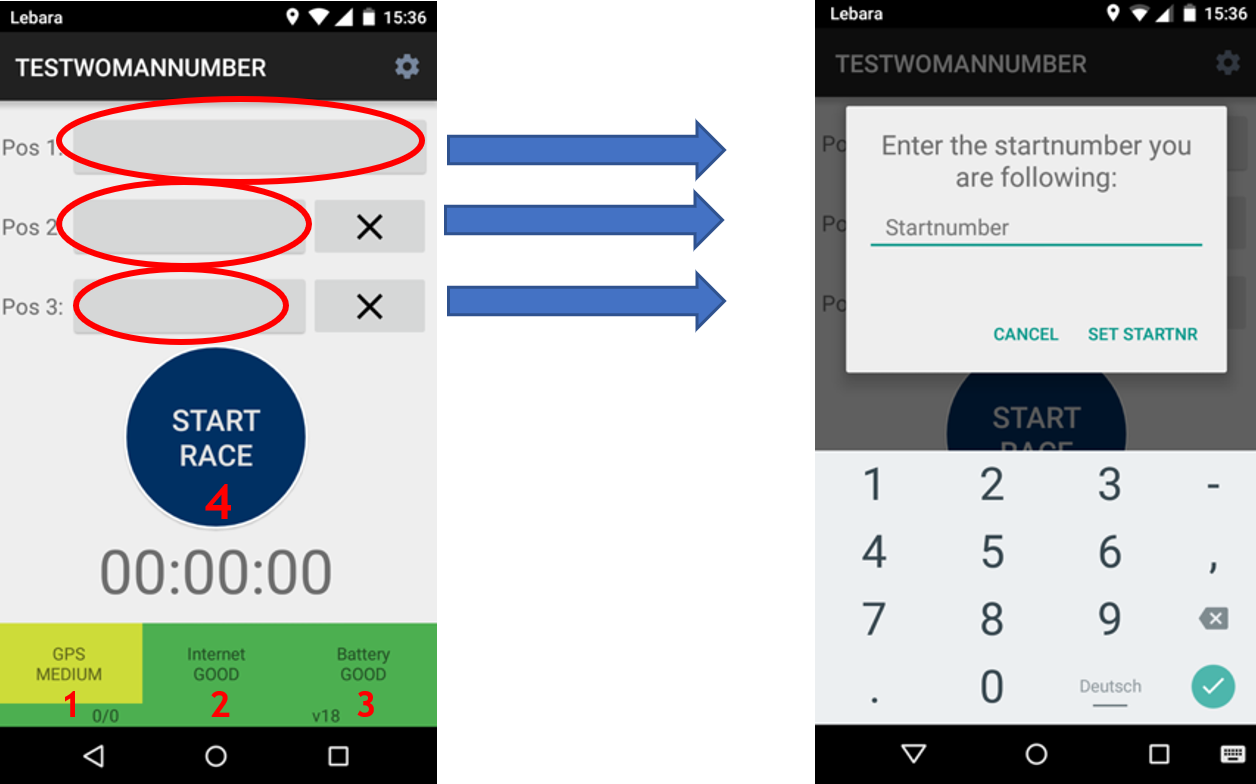
- indicates information about the GPS connection of the device
- indicates information about the internet connection of the device
- indicates information about the battery status of the device
- By pressing “START RACE” you activate the data transmission
For entering start numbers click on the highlighted fields (red ellipses). Another window will pop up where you can type in the start number. Apart from the leader input box (“Pos 1”), there are also boxes for the athletes on positions 2 and 3. If you have a group of athletes leading, also enter these two start numbers. If the leading group splits up and there is only one leader again, the bikers can also delete the second and third number by pressing the “X” – button.
There will be a lot of changes on the first five kilometers of the race. The bikers don’t have to report and enter every new leader if they are running in a group.
They are not allowed to switch around the leader tracker phones without the Race Control’s knowledge and approval! Most importantly, the leader tracker for leading man/woman/wheelchair, must stay always with the leading participant, no matter if he has other.
End of the Race:
- Woman: When the Catcher Car has overtaken the leading woman press “Stop Race” and type in “stop”
- Man: When the Catcher Car has overtaken the leading man press “Stop Race” and type in “stop”
No comments to display
No comments to display