
8. + 9. Quick Overview & Additional Hardware
8.1 Check Firmware Version Controller (Menu “7-3-2”)
- Split and Start Lines: 7.7.2.23 (Menu -> 7-3-2)
(GPS markers should be turned off for 15k and 44k – Frequency OFF in Menu “4-6-3”) - Catcher Cars: 7.7.2.23 (Menu -> 7-3-2)
(GPS markers should be turned on for CCs – Frequency 1s in Menu “4-6-3”) - Press “Verify Patch Status” in the OBU Overlay Menu.
8.2 Check GPS Frequency Setting on Controller (Menu “4-6-3”)
- Split and Start Lines: Frequency OFF (GPS markers disabled)
- Catcher Cars: Frequency 1s (GPS markers enabled)
8.3 Check Server Address on Controller (Menu “2-1-2”)
- Catcher Car: 172.20.23.2
- 15K/44K: 50.17.233.218
8.4 Check Event/ Point name (Menu “1-1-1”)
- 15K:
- Event name: WFL10052026
- Point name: <YourIOCcode>15K
- 44K:
- Event name: WFL10052026
- Point name: <YourIOCcode>44K
8.5 Check Reader Frequencies (Menu “3-3-3”)
8.6 Check Phones
- Tracking Application:
- Version: 27
- User: click here
8.7 Check Tablets/ DAU
- Wi-Fi name: OBU-<OBU Hostname> (e.g. OBU-SLO-MAIN) (OBU-SLO-BACKUP)
- Wifi password: worldscore
- Menu: http://192.168.77.1/dau.jsp
- Countdown: http://192.168.77.1/count.jsp
- Map: http://192.168.77.1/map.jsp
9. ADDITIONAL HARDWARE
In the following, you will get a short overview about the hardware you need for the full race setup.
9.1 MiniTrack
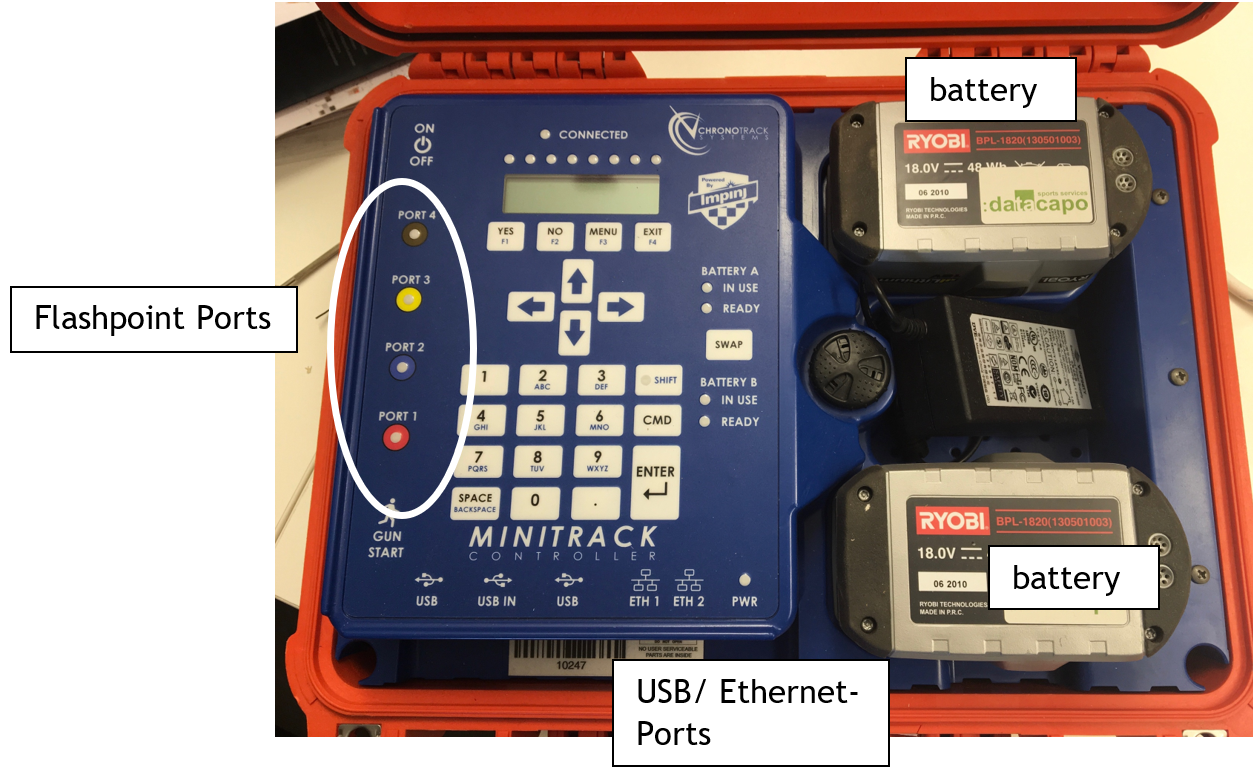
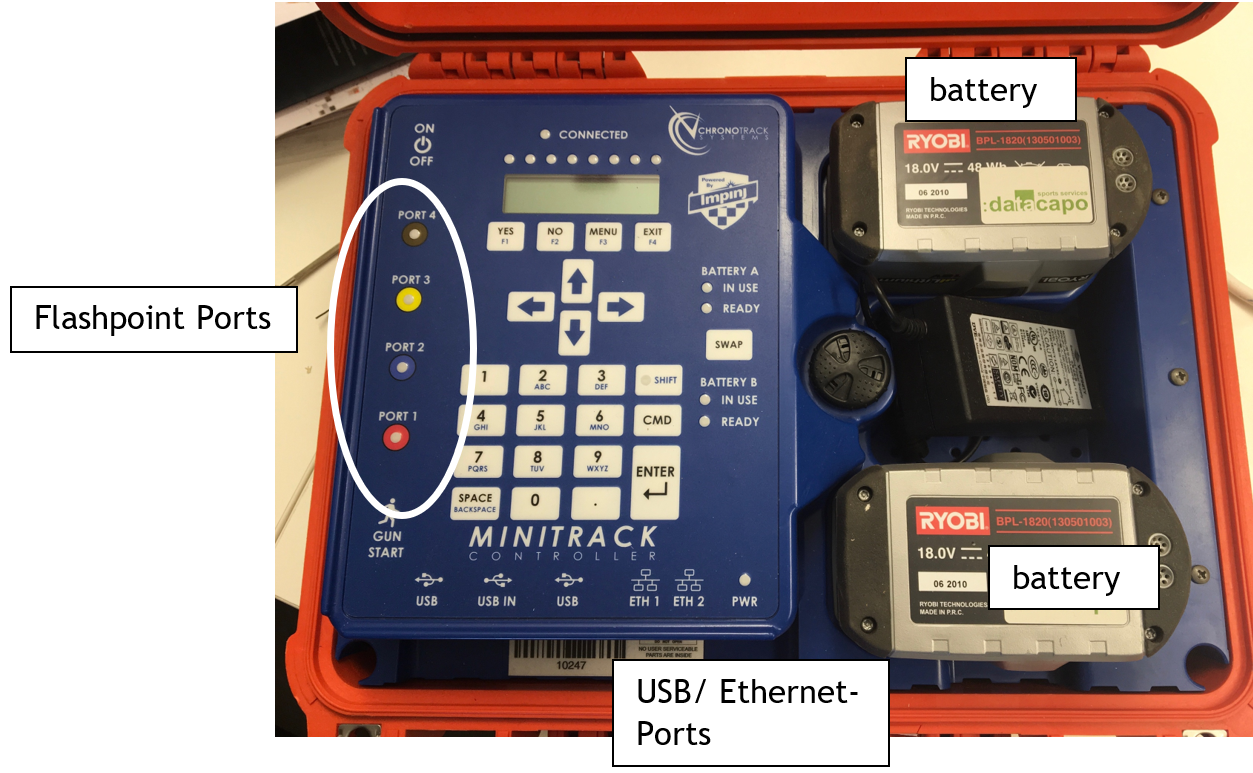
Chronotrack MiniTrack Controllers measure athletes with RFID-Technology via their Flashpoint antennas. They will be used for measurements in the Catcher Cars and at the KM 15 and 44 split lines.
- Characteristics:
- does not include an integrated modem
- 4 antenna terminals available for 2 Flashpoints
- exchangeable batteries
9.2 Flashpoint and Cables
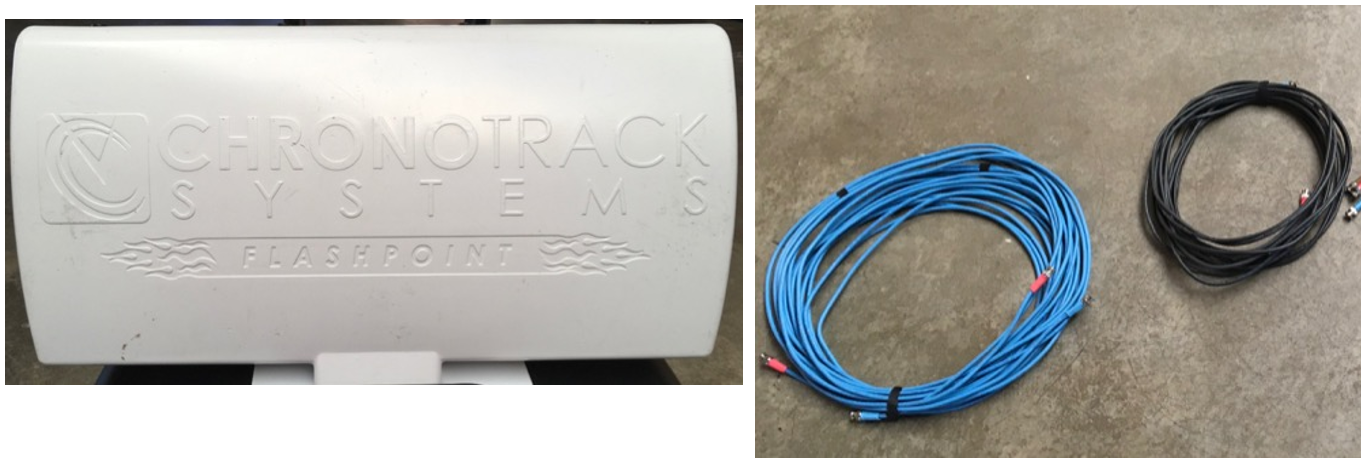
The Flashpoints are mounted to tripods at the side of the track (at KM 15 and 44) and on the Catcher Cars. They are always connected to the MiniTrack with FP-cables. Depending on the distance between Flashpoints and Controller there are longer, blue cables and shorter black ones.
9.3 LG Q7 Mobiles (Leader Devices)
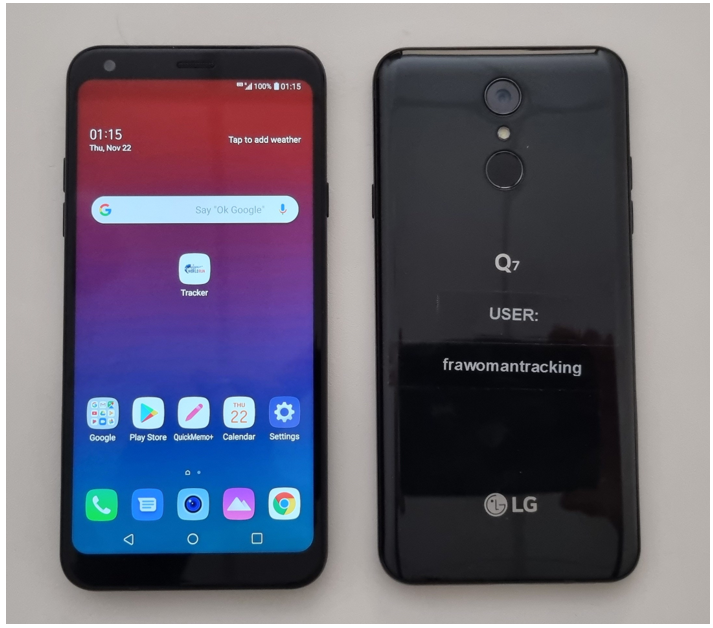
At the race there will be three bikers for each male and female.
Wheelchair will have each one biker M/W.
For more detailed information, please read the Leader Device Guide.
Do not update any Apps or upgrade the Android System Firmware!
In case you need to change the configuration at the Leader Devices, please read the Leader Device Guide provided. There is a detailed guide on how to rename your Leader Devices.
9.4 Top – Athlete Tracking
Every year we have a tracking app for leading man and woman in every country.
This year we introduce additional tracking devices for the top athletes in every country. The goal is to know exactly where the top 3 males and top 2 females of every country are running.
To track the athletes, we will use small Android phones (King Kong Mini) that will run the same app as the leader devices for leading man and woman.
Here's the number of devices every country will get:
| Country | Tracker Devices |
| Poland | 7 |
| Croatia | 0 |
|
Switzerland |
6 |
| Germany | 10 |
| Austria | 11 |
| Slovenia | 8 |
| Netherlands | 7 |
The local Red Bull Team can decide which athletes they want to give the phones to.
Some King Kong Minis are for the top athlete tracking.
You need to enter the bib number of the top athlete BEFORE you start the tracking on each phone. When you entered the bib number and started the tracking give the phone to the top athlete with the arm sleeve so he can put the phone at his arm while running. The athlete will have this phone the whole race at his arm and don’t give it to another athlete!
With this phone we can track the top athletes accurately.
Please make sure you test the devices together with the other equipment and that they are fully charged on raceday.
- On raceday:
- start the tracking in our app
- enter the startnumber of the athlete that gets the device.
- Put the device in sleeve (comes with the phones) and hand it over to the athlete who gets it OR – if Red Bull will handle the distribution to the athletes – give them the phone and the sleeve and brief them that they have to give the correct device to the correct athlete (! super important).
- collect the devices after the race from Red Bull
- How to configure the app:
- This is how the app will look like when you get it:
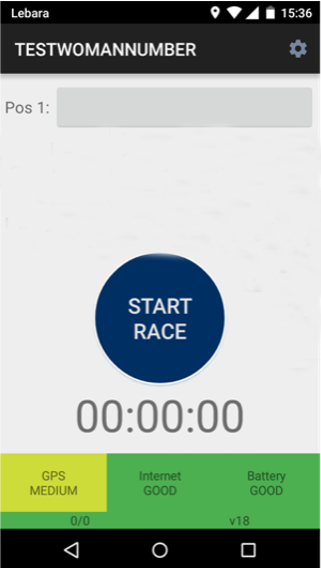
- Click on “Start Race” before you give the app to anybody on raceday and enter the startnumber of the athlete that get’s the phone in “Pos 1”
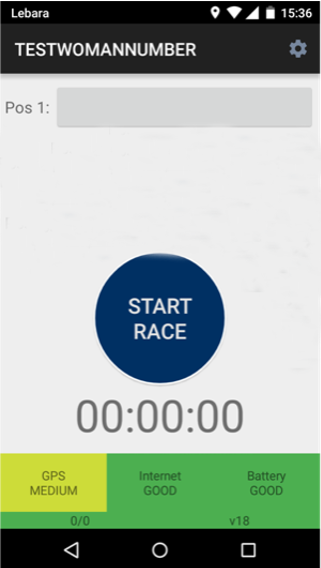
- This is how the app will look like when you get it:
9.5 TP Link Router and LTE Stick
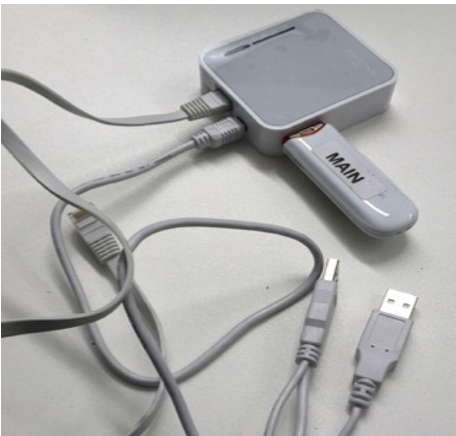
The TP Link is used to bring the 15K and 44K line online.
If the status LED of the globe symbol is on permanently blue you are connected to 4G. This means you have a successful and stable connection.
If its green you are connected to 3G frequency, that’s not optimal but okay.
9.6 USB-C Powerbank and Power Adapter
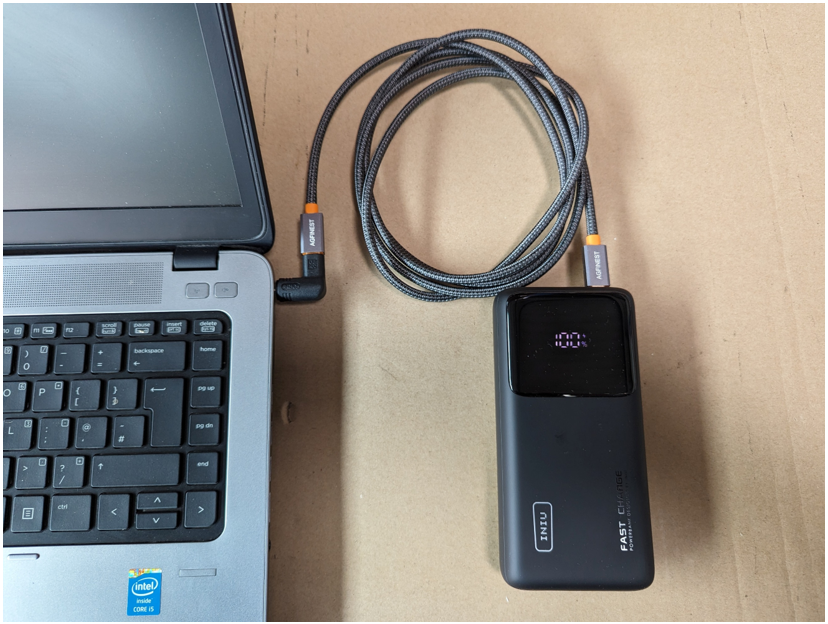
It is used to power the OBU in the Catcher Car via USB-C Powerbank and Power Adapter. Connect the Powerbank (45w port) to the USB-C to USB-C cable. After that you can connect the Powerbank to the OBU and it will charge it.
On the New MAIN - Dell OBUs you don’t need the 7,4mmx5mm to USB-C Adapter.
Remark: If you're charging the obu with external power, please unplug the Powerbank from the OBU because it will prioritize the powerbanks power and will drain it (if connected).
NEVER hand over the USB-C Powerbank and Power Adapter to photographers or other staff in Catcher Car to charge their devices!